Manually Install AdGuard Home in a MikroTik Container (Method 2)

In the previous guide, I installed an AdGuard Home container using a ready-made Docker image.
That approach is fast, but some installations fail even after repeated attempts. This guide uses a blank Docker image with no service installed, then installs AdGuard Home inside it.
The offline image can reduce image-pull failures and allows other services to be added. The trade-off is more setup work.
I. Enable Container support
- Open Terminal and run
/system/device-mode/update container=yes.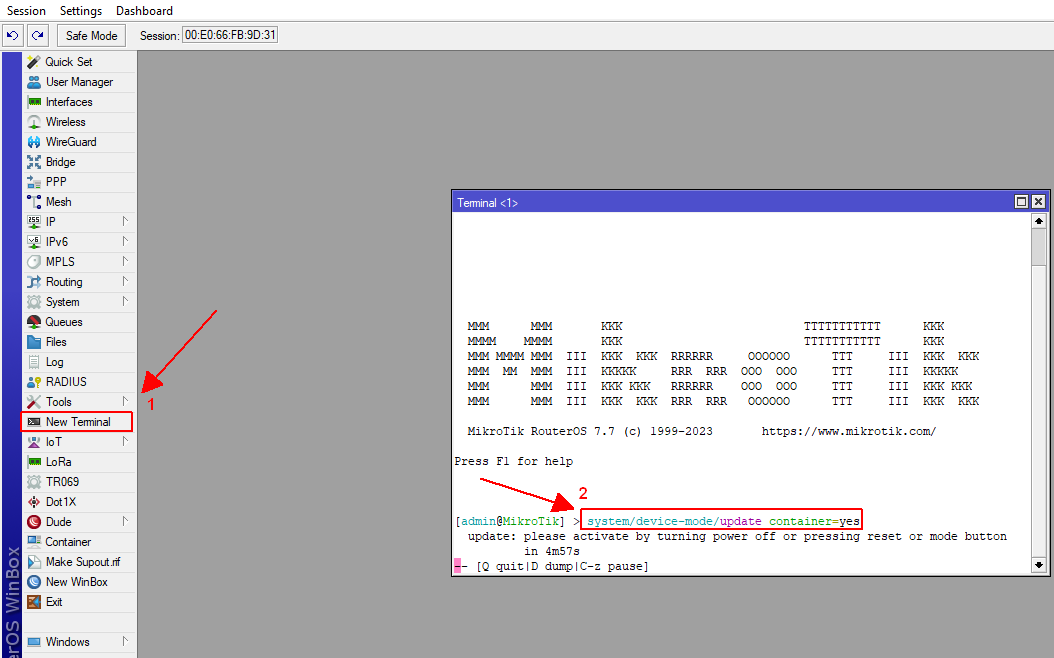
- When prompted, power-cycle the router.
- After reboot, run
/system/device-mode/printand confirmcontainer: yes.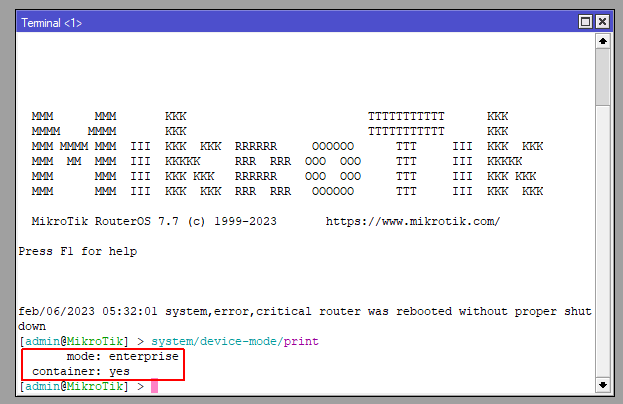
II. Prepare container networking and install the blank image
II.A. Prepare networking
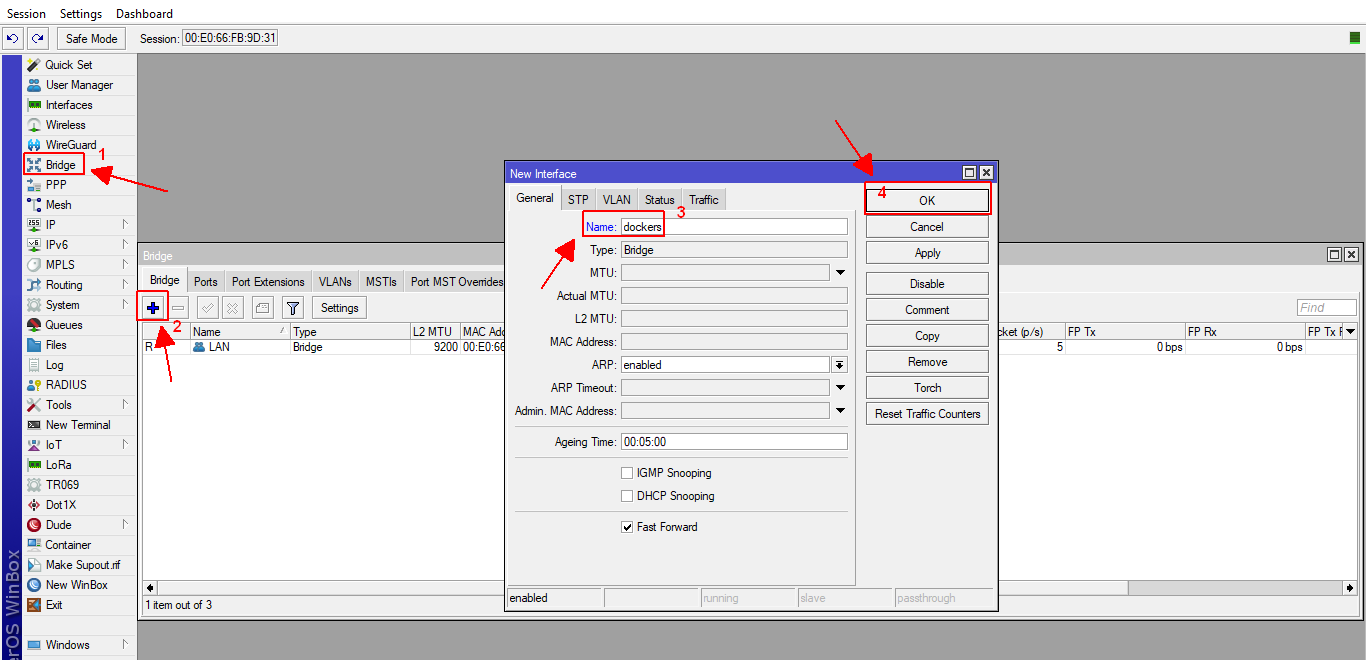
- Create a bridge named dockers.
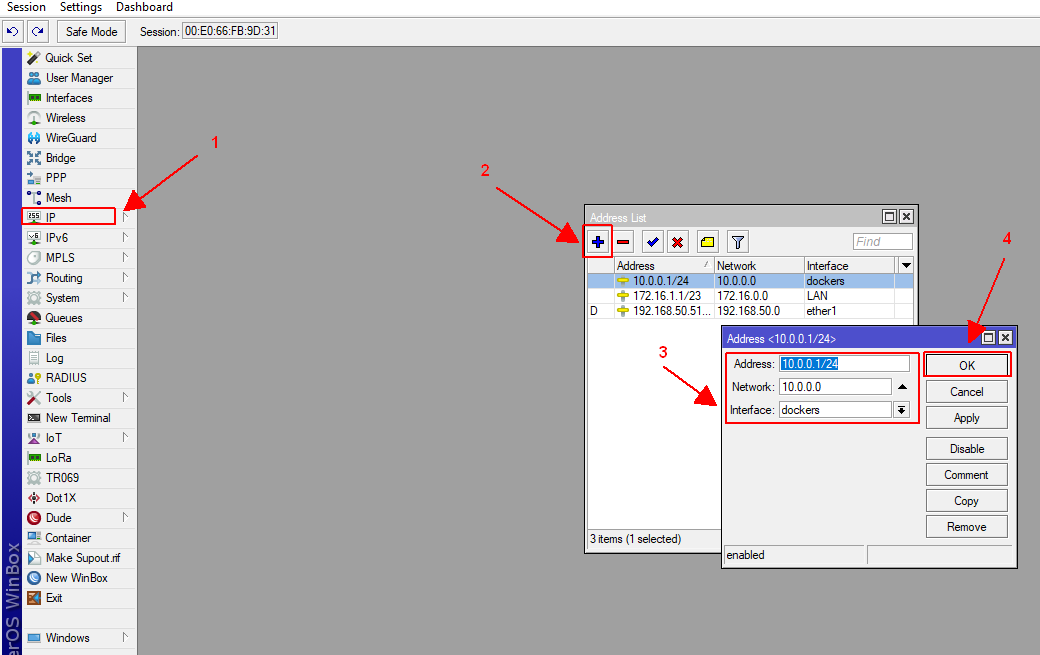
- Assign an IP address.
- Create a VETH interface.
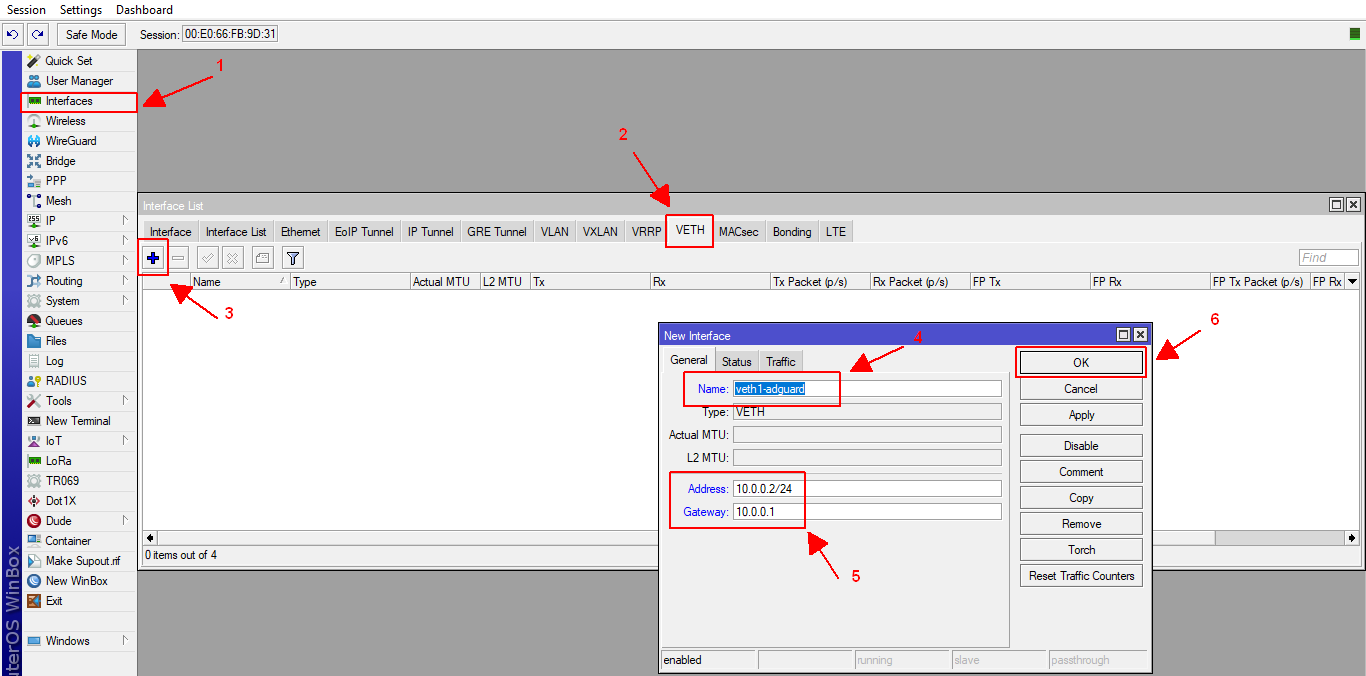
- Add the port to the dockers bridge.
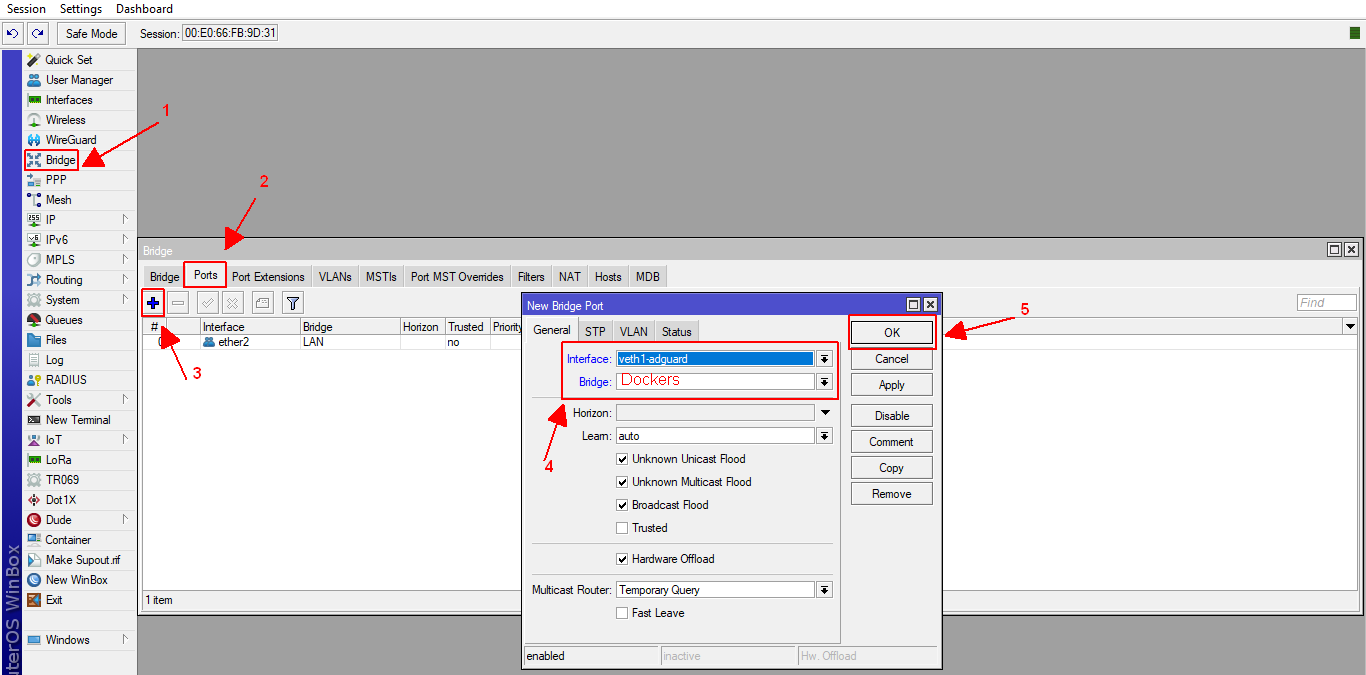
II.B. Install the blank Docker image
{{< notice “danger” >}} This image was built for x86_64. Do not use it on ARM, ARM64, or 32-bit x86 routers. {{< /notice >}}
- Download the blank image from Google Drive or the Mega mirror.
- It is based on Alpine Linux 3.17 Slim.
- It uses Supervisor to start services.
- It contains no personal customization or harmful scripts.
- If you do not trust a prebuilt image, build your own.
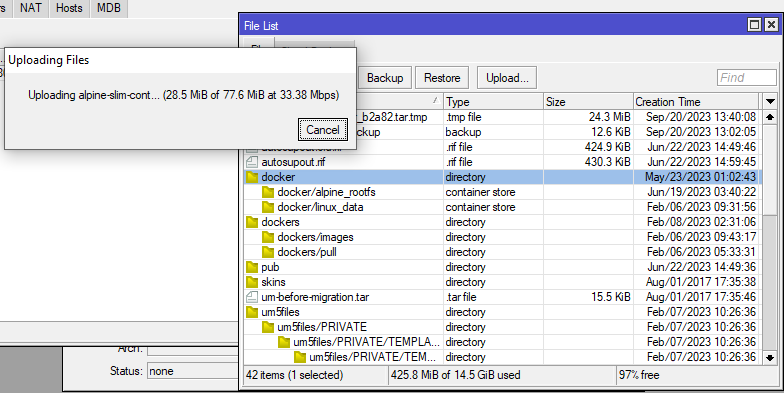
- Upload the image to MikroTik through Files in WinBox.
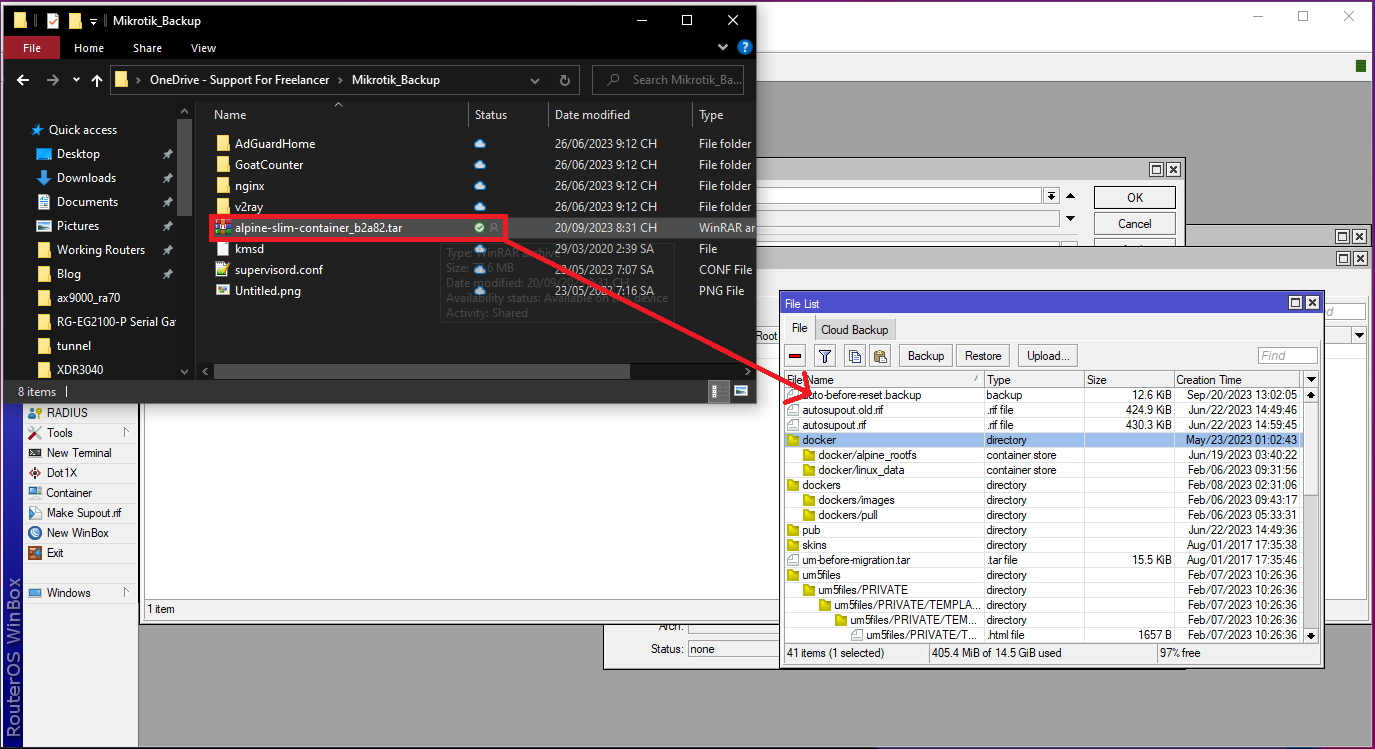
- Open Container, click Add, and configure:
| Field | Value |
|---|---|
| File | The Docker image filename (file.tar) |
| Interface | The VETH created in II.A |
| Root Dir | The container storage directory |
| Logging | Show logs in WinBox; enable while troubleshooting |
| Start On Boot | Start after MikroTik boots |
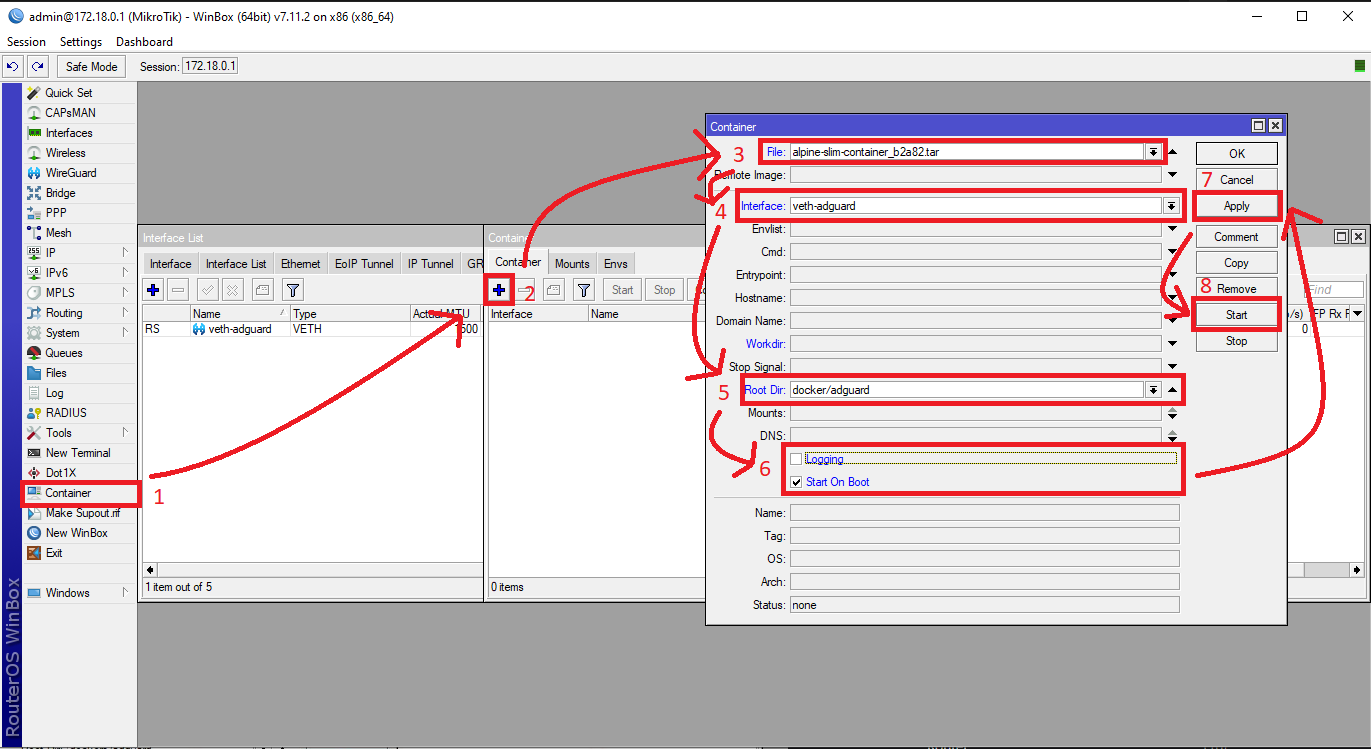
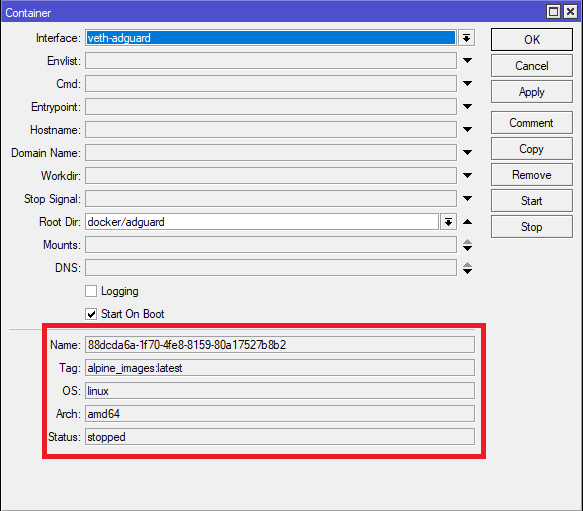
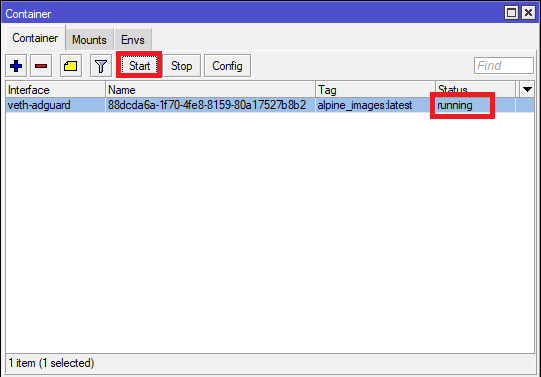
Click Apply. If the image is installed correctly, the result should look like the screenshot.
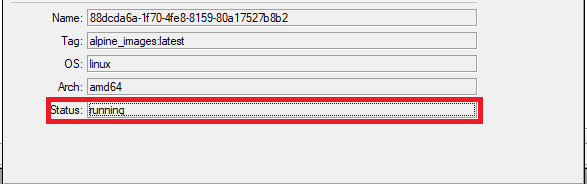
Click Start and confirm Status changes to Running.
III. Install AdGuard Home in the blank image
- Open WinBox Terminal:
/container/shell 00 is the container ID. Run /container print if the ID is different.
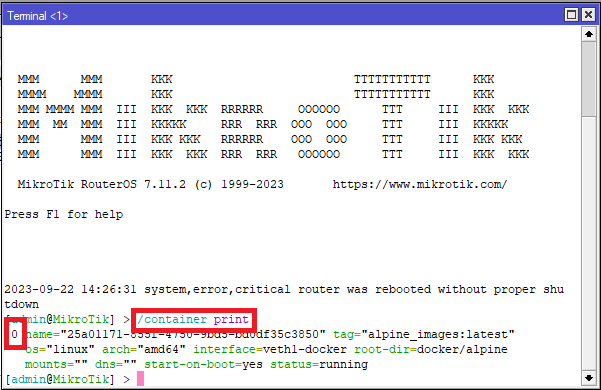
- Download AdGuard Home:
cd /optwget https://github.com/AdguardTeam/AdGuardHome/releases/download/v0.107.38/AdGuardHome_linux_amd64.tar.gz{{< notice “info” >}} Check the AdGuard Home releases page for the newest version and update the URL before installing. {{< /notice >}}
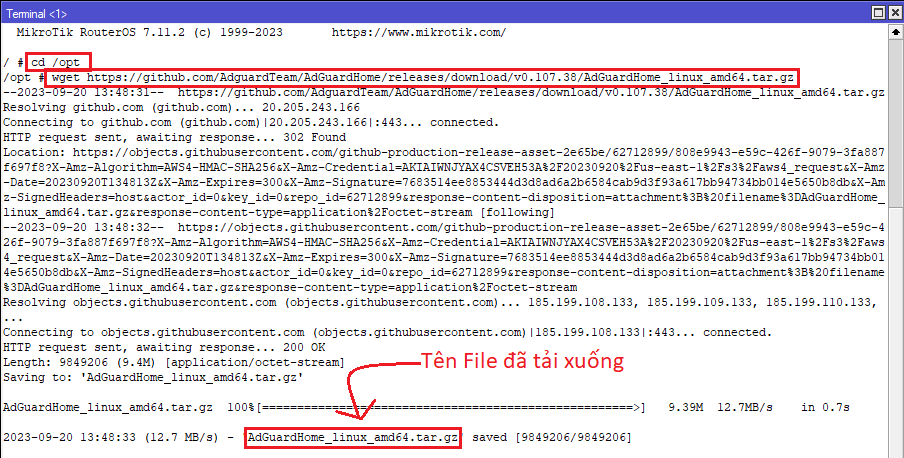
- Extract it:
tar -vxzf AdGuardHome_linux_amd64.tar.gz
- Configure Supervisor to start AdGuard Home:
vi /etc/supervisord.confAdd:
[program:adguardhome]command=/opt/AdGuardHome/AdGuardHome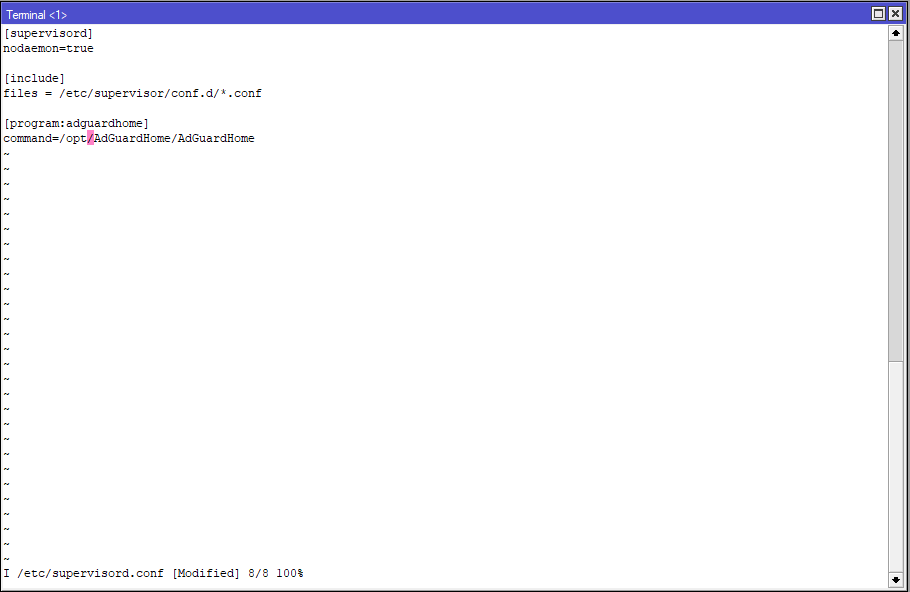
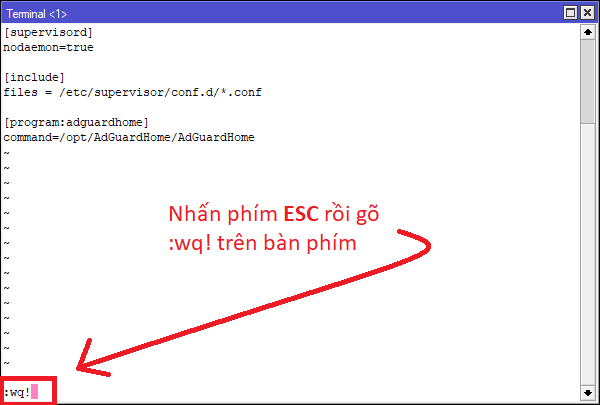
Save with ESC, then :wq! and Enter.
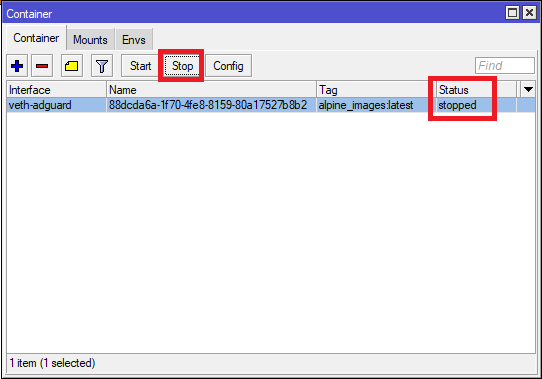
Stop and start the container again.
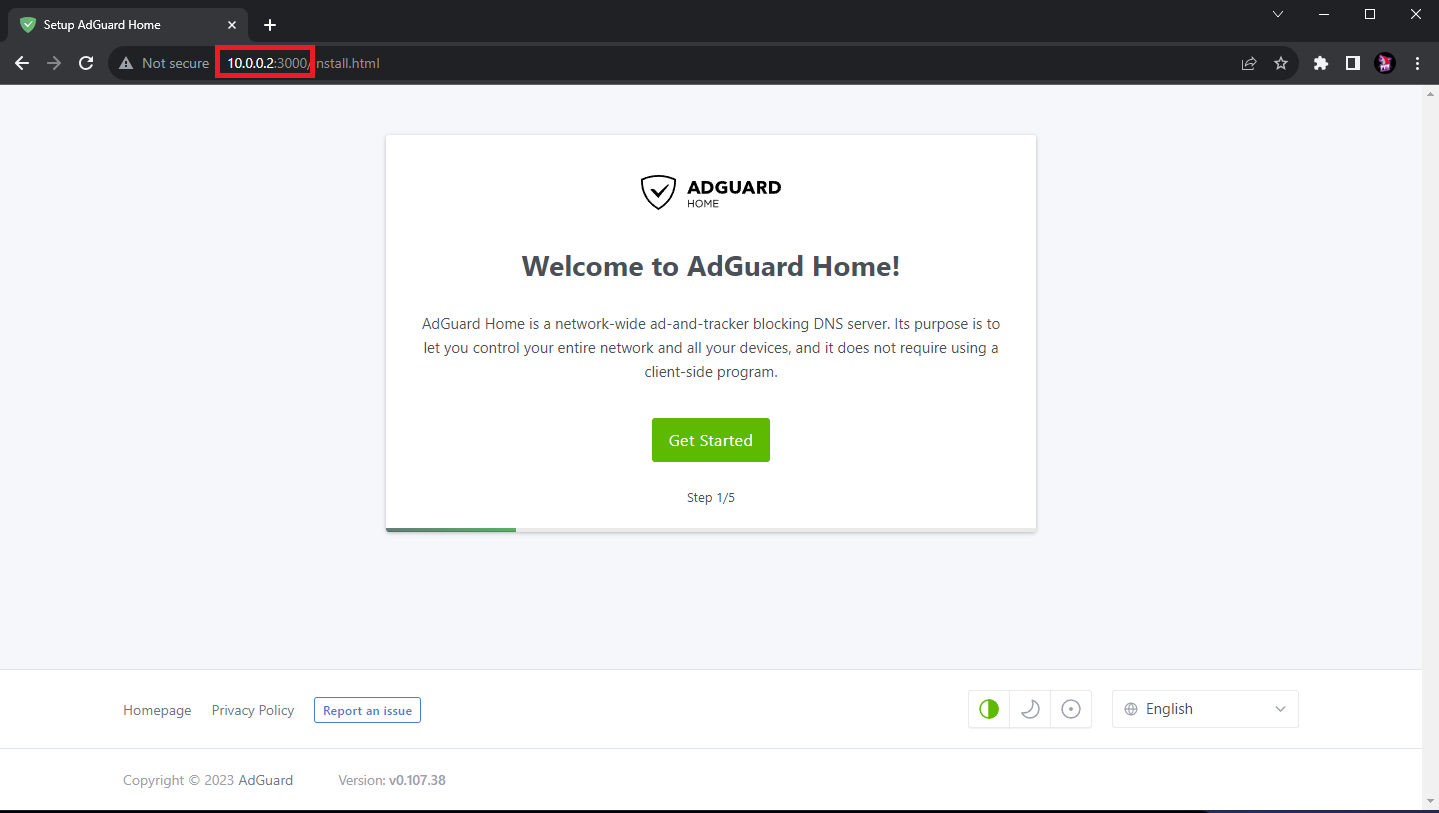
Open http://10.0.0.2:3000/ to configure AdGuard Home.
IV. Set DHCP DNS to AdGuard Home
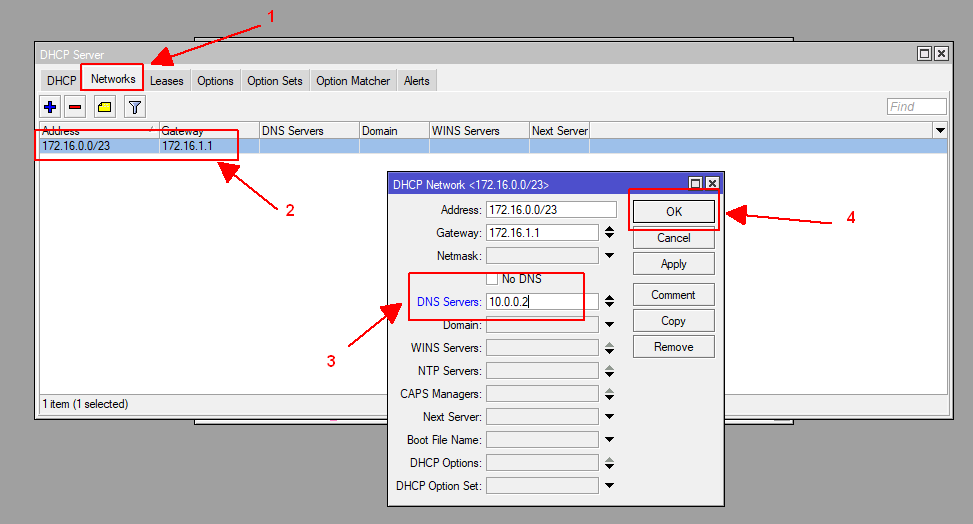
{{< notice “danger” >}} Set AdGuard Home as the DNS server under IP > DHCP Server > Network. Do not set it as the MikroTik router’s own DNS under IP > DNS unless you understand the impact. {{< /notice >}}
- Open IP > DHCP Server > Network.
Good luck.
Comments & Discussion
Share your thoughts, ask questions and feedback