

i12bretro tutorial 0595 places a Docker host inside a Proxmox VE Linux container (CT) using the TurnKey Core template. It downloads the template, creates a CT named Docker with 2048 MB RAM, updates the OS, installs Docker, and optionally adds Portainer.[10]
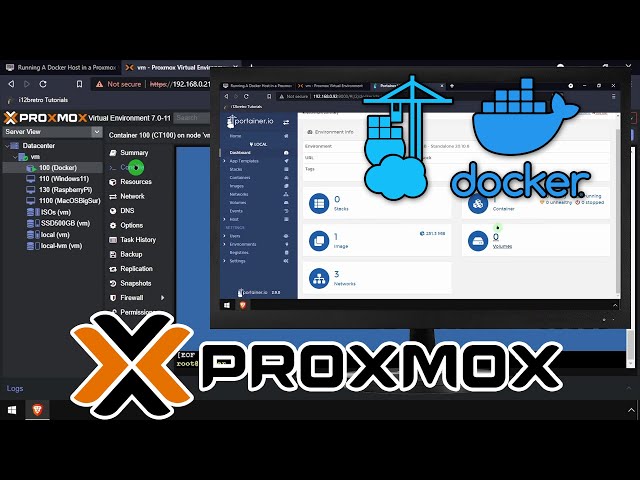
This is the original tutorial video.[15]
1. Create the container
- Log into the Proxmox VE web UI.[10]
- Select a left-panel storage that permits Container templates.[10]
- Select CT Templates in the sub-navigation.[10]
- Click Templates.[10]
- Search for
core, select TurnKey Core, and click Download.[10] - Wait for the download to finish and close the download dialog.[10]
- Right-click the Proxmox node and choose Create CT.[10]
- Set Hostname to
Docker, enter and confirm a password locally, then click Next.[10] - Select the storage holding the template and choose the TurnKey Core template, then click Next.[10]
- Select the storage that will hold the container, then click Next.[10]
- On CPU, keep the defaults and click Next.[10]
- On Memory, set Memory to
2048, then click Next.[10] - On Network, keep the defaults; configure a static IP from the router if needed, then click Next.[10]
- On DNS, keep the defaults and click Next.[10]
- Review the summary and click Finish.[10]
- When creation completes, close the download dialog if it remains open.[10]
- Right-click the Docker LXC in the left navigation and choose Start.[10]
- Click Console in the sub-navigation.[10]
Enter the CT password during creation; use a unique password and do not store it in a file or script.[10]
2. Update the container and leave the TurnKey menus
- Log into the container as
rootwith the password set earlier.[10] - In Initialize Hub services, press Tab, select Skip, and press Enter.[10]
- In System Notifications, press Tab, select Skip, and press Enter.[10]
- In Security updates, press Tab to choose Install for automatic updates or Skip, then press Enter.[10]
- Press Enter to select Advanced Menu.[10]
- Arrow down to Quit, press Enter, select Yes, and press Enter.[10]
- Run the update commands:[10]
| |
- Log back into the container after the reboot.[10]
3. Install Docker
- Run the tutorial's package and repository sequence.[10]
| |
- Confirm that the Docker host is ready for
docker runanddocker-composefrom the terminal.[10] - Continue by running Docker containers from the terminal as needed.[10]
4. Optional Portainer
- Create Portainer's data directory and run the container; Portainer provides a web UI for container management.[10]
| |
Then:[10]
- Open
http://DNSorIP:9000.[10] - Create the administrator username and password in the local UI, then click Create user.[10]
- Choose Docker - Manage the local Docker environment, then click Connect.[10]
- Confirm that Portainer displays the Docker environment.[10]
Checks and limits
I inspect docker ps, run a test container, review logs, and confirm the Portainer volume exists. Docker inside LXC must be evaluated against the current Proxmox version, privileged/unprivileged mode, and kernel policy; the source tutorial does not guarantee the same defaults on every newer host. I do not expose Portainer directly to the Internet or put real credentials in an image/script.[10]
Original tutorial video: [watch it on YouTube]1.[15]
Source
Original source: [Running A Docker Host in a Proxmox VE LXC Linux Container [CT]]2, published/updated 2021-10-01.[10]
Sources
[10] https://i12bretro.github.io/tutorials/0595.html — Running a Docker Host in a Proxmox VE LXC Linux Container [15] https://www.youtube.com/watch?v=q98XUBf2YO4 — Running A Docker Host in a Proxmox VE LXC Linux Container (CT) — i12bretro video
https://www.youtube.com/watch?v=q98XUBf2YO4 — official i12bretro video. ↩︎
https://i12bretro.github.io/tutorials/0595.html — Running A Docker Host in a Proxmox VE LXC Linux Container [CT]. ↩︎
 Install Docker and run HostMon with a persistent …
 Deploy PhotoPrism with MariaDB, persist …
 Create an OpenWrt x86 VM on Proxmox VE, import the …
 Run Healthchecks and PostgreSQL in Docker, …
Góp Ý / Bình Luận / Đánh giá