How to Install AdGuard Home Directly on a MikroTik Router

What is AdGuard Home?
AdGuard Home blocks advertisements and trackers for an entire network. Once configured, all clients can use it without installing software on each device.
It works as a DNS server and redirects tracking domains to a non-routable destination, preventing devices from connecting to those servers.
Containers on MikroTik
A container is similar to Docker on Linux or Windows. It provides an isolated Linux environment in which services can run.
Container support was added in RouterOS v7.4beta4.
Requirements and warnings
Requirements
- Physical access to the router to enable the Container feature, which is disabled by default.
- A CPU architecture supported by containers: ARM, ARM64, or x86.
- A higher-performance router; avoid using containers on entry-level models.
A mini PC can be a better option. My setup uses a quad-core J1900 at 2.4 GHz, 4 GB RAM, and a 16/128 GB SSD.
Warnings
- Physical access is required to activate Container support.
- Once enabled, containers can be added, configured, started, stopped, and removed remotely.
- If the router is compromised, a container can be abused to install malware on the router or network.
- Container security is only as strong as the image and configuration you run.
- A third-party container image can introduce another attack surface.
- A skilled attacker may exploit a service and escalate privileges.
Install AdGuard Home on MikroTik
0. Enable Container support
-
Open Terminal and run
/system/device-mode/update container=yes.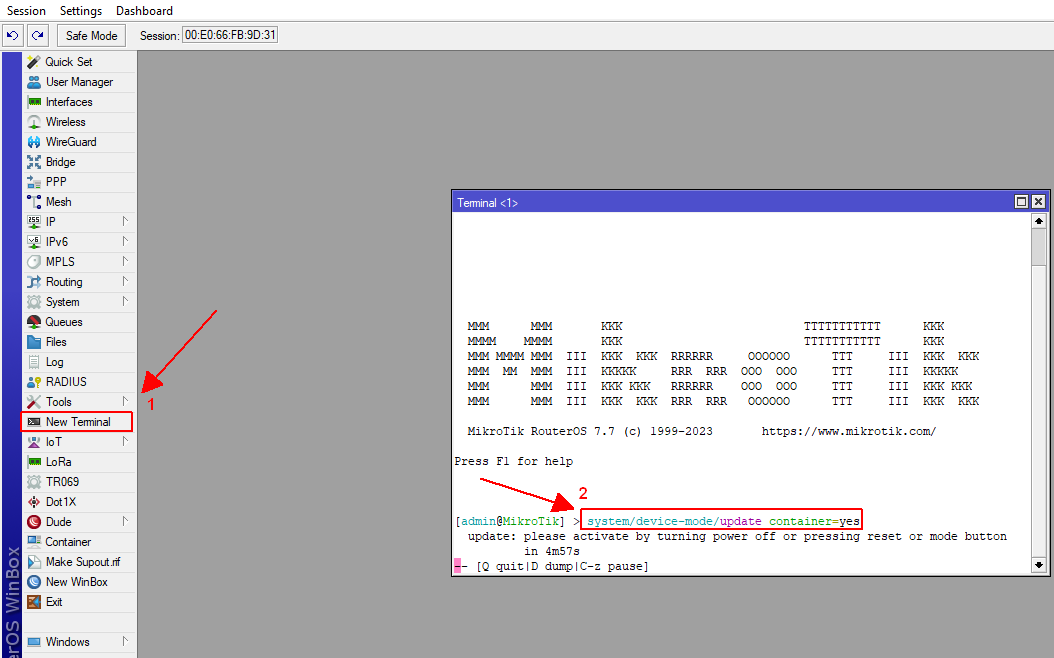
-
When the router displays
update: please activate by turning power off or pressing reset or mode button in..., power-cycle it. In a virtual machine such as VMware or Proxmox, stop the VM completely and start it again; do not use a normal shutdown or reboot. -
After reboot, run
/system/device-mode/print. The output should containcontainer: yes.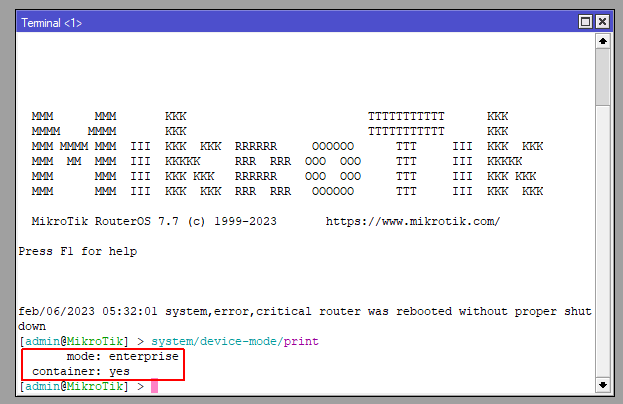
1. Create the AdGuard Home container
- Create a new bridge named dockers.
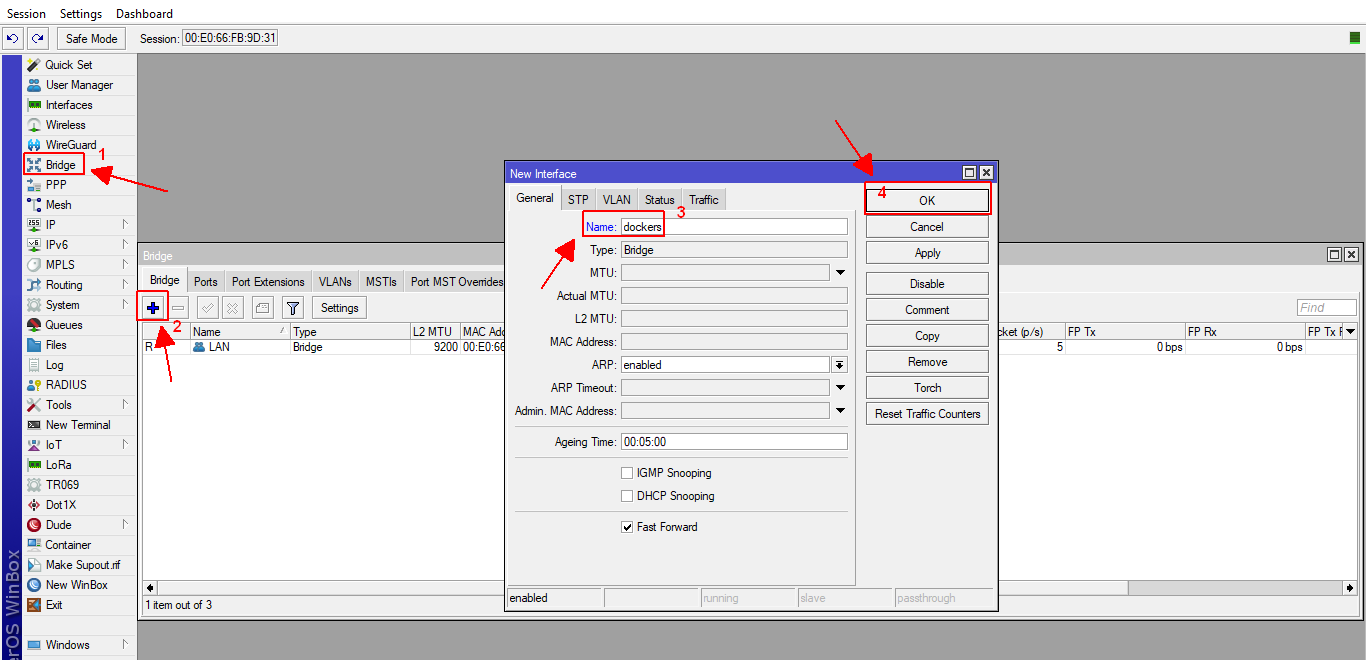
- Assign an IP address to the bridge.
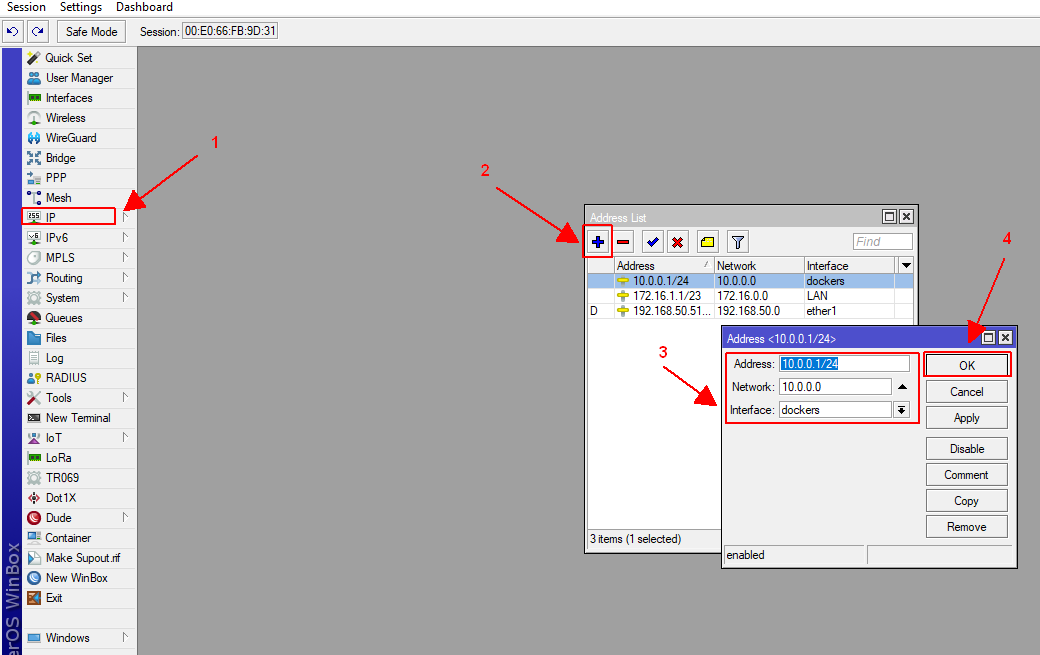
- Create a VETH interface for the container.
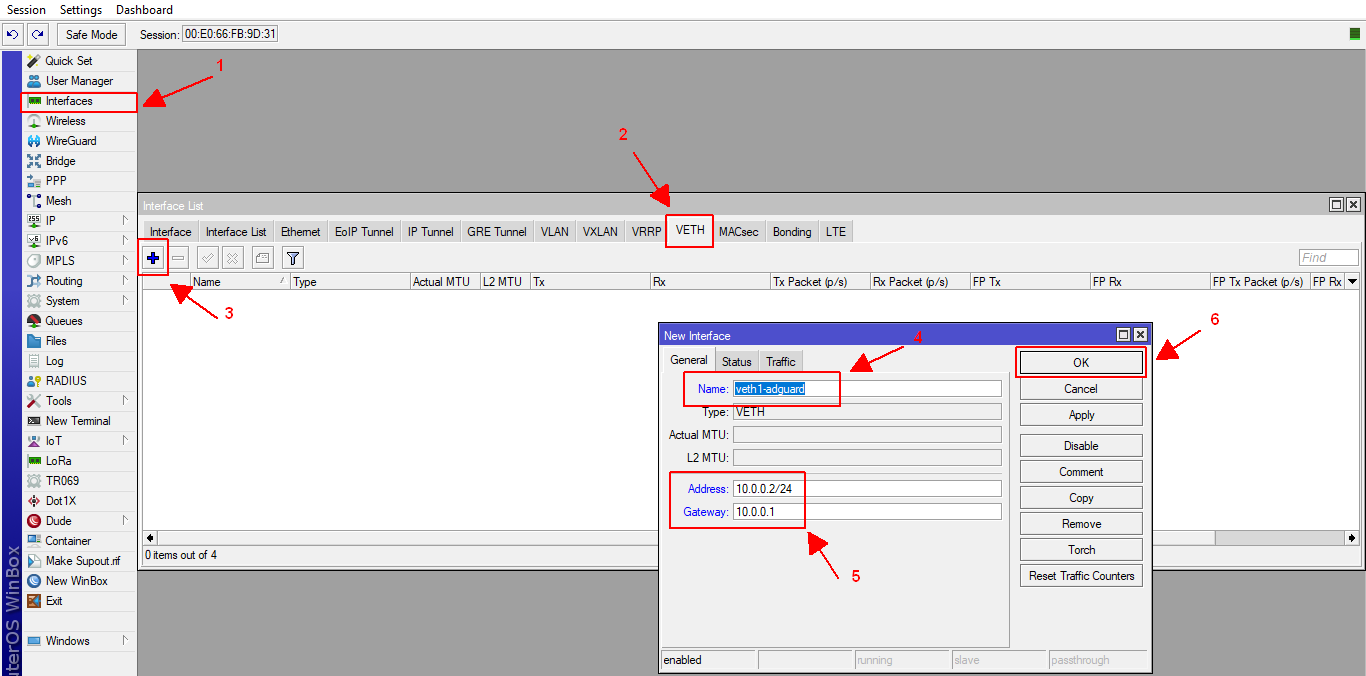
- Add the VETH port to the bridge.
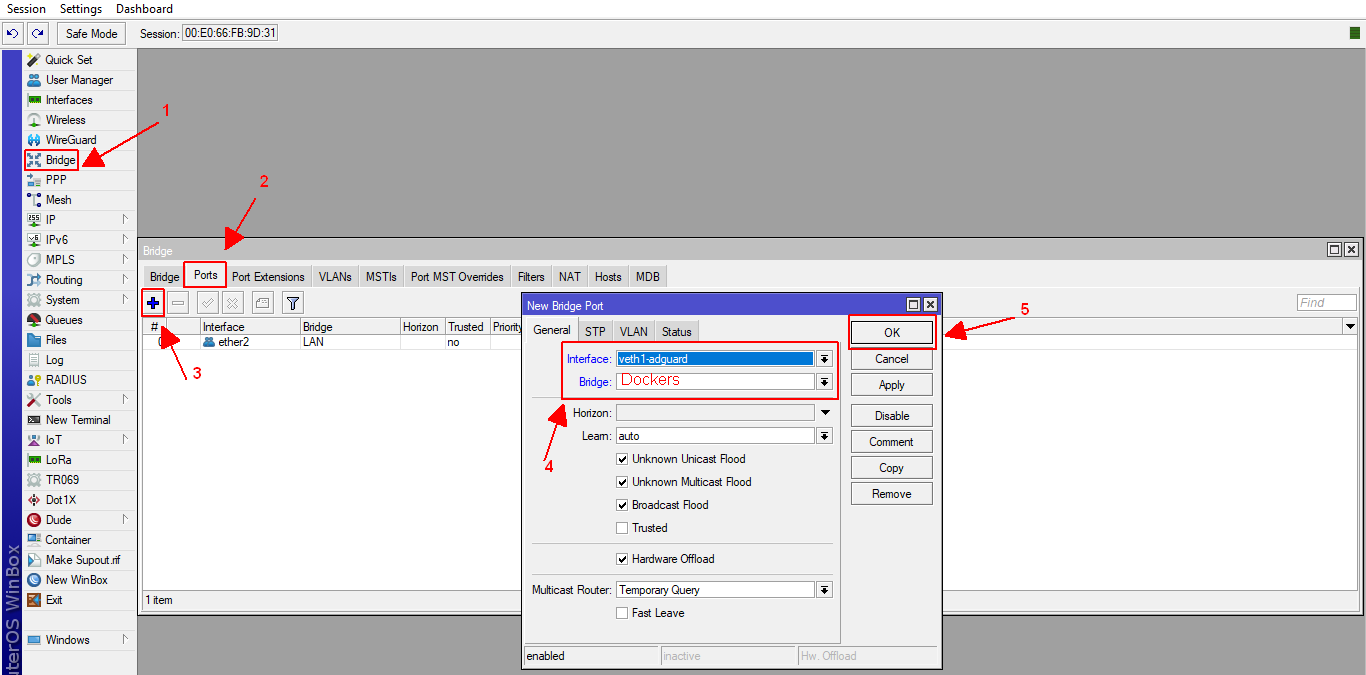
- Configure the container. Set the maximum RAM, choose a Docker registry such as
https://registry-1.docker.io/, and select the VETH interface.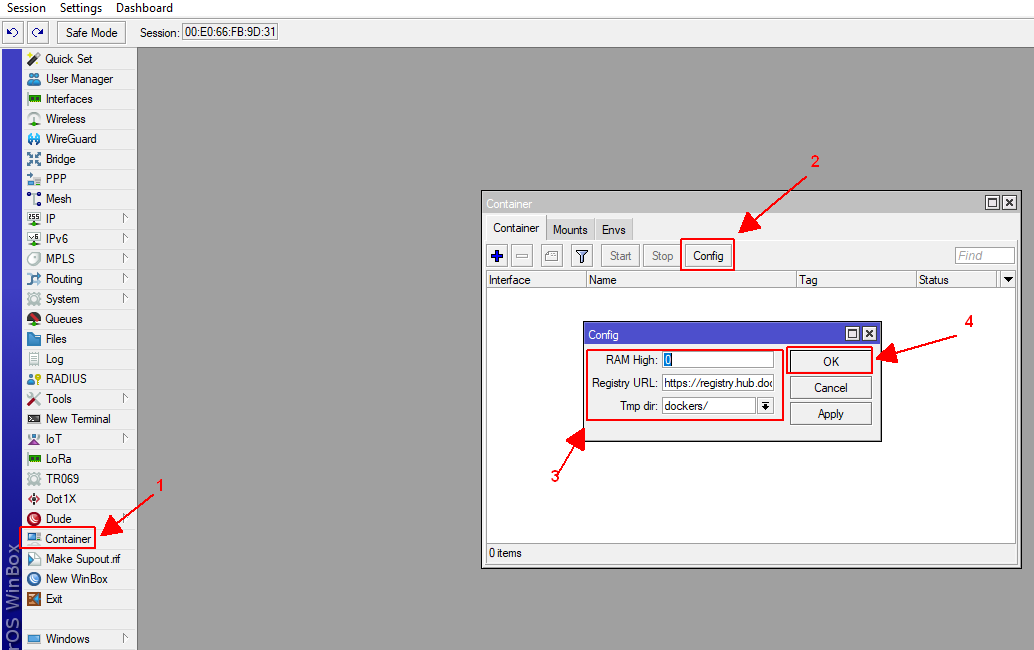
- Add the official AdGuard Home image:
- Remote image:
adguard/adguardhome:latest - Interface: the VETH created above.
- Root Dir: choose a storage directory.
- Logging: enable it while troubleshooting, then disable it if desired.
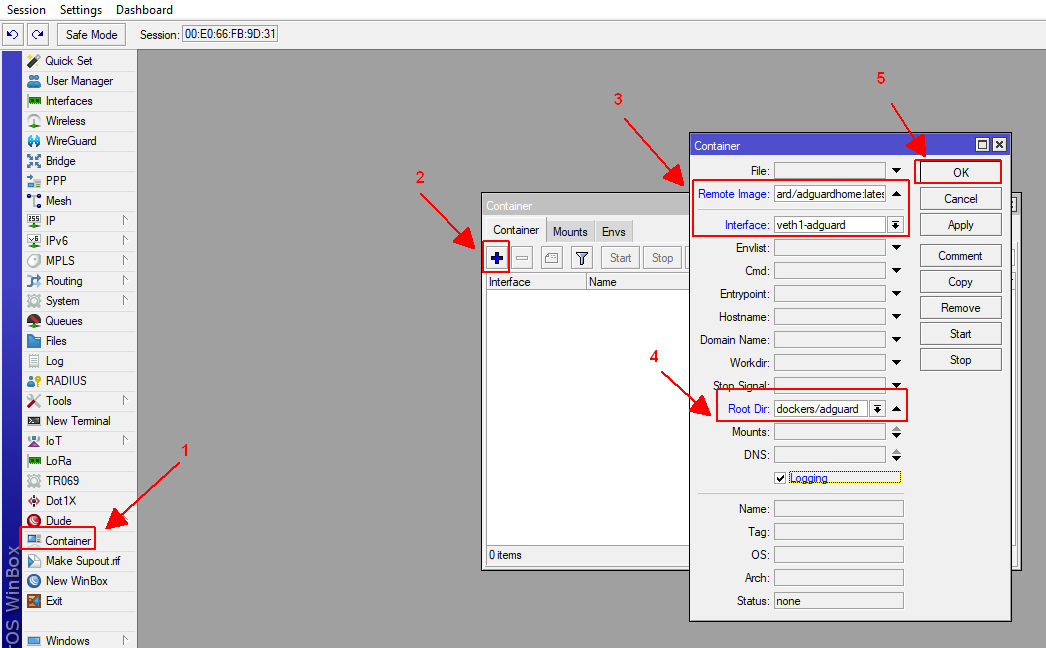
- Remote image:
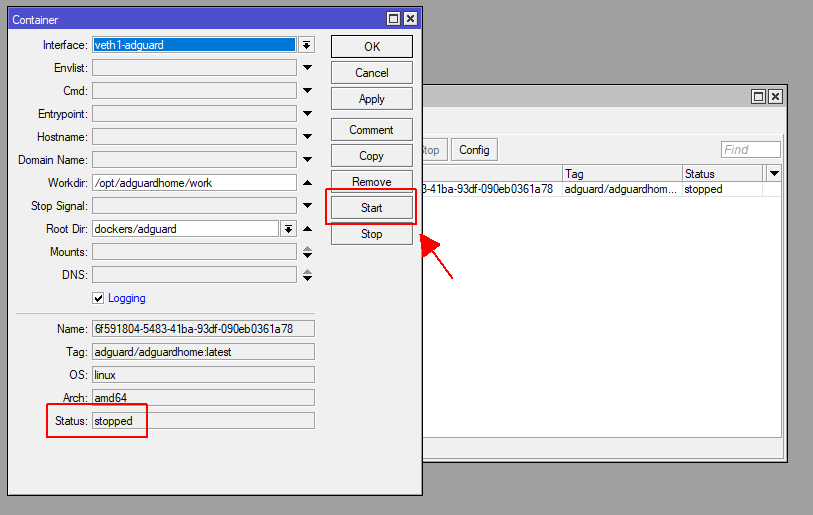
- After Apply, wait for Status to show Stopped. The container has been created; click Start to run it.
- Enable auto-start. Run
/container/printto find the container ID, then set it with/container/set start-on-boot=yes 0.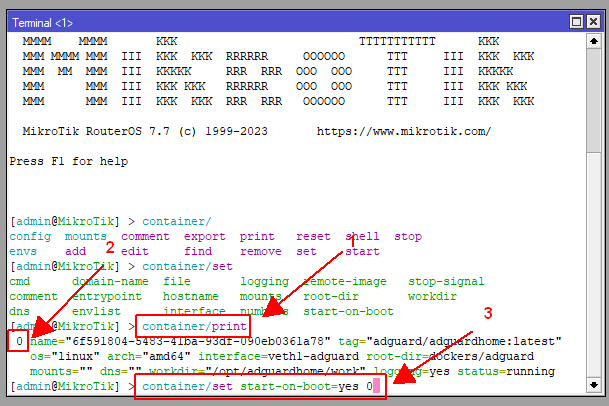
- Open
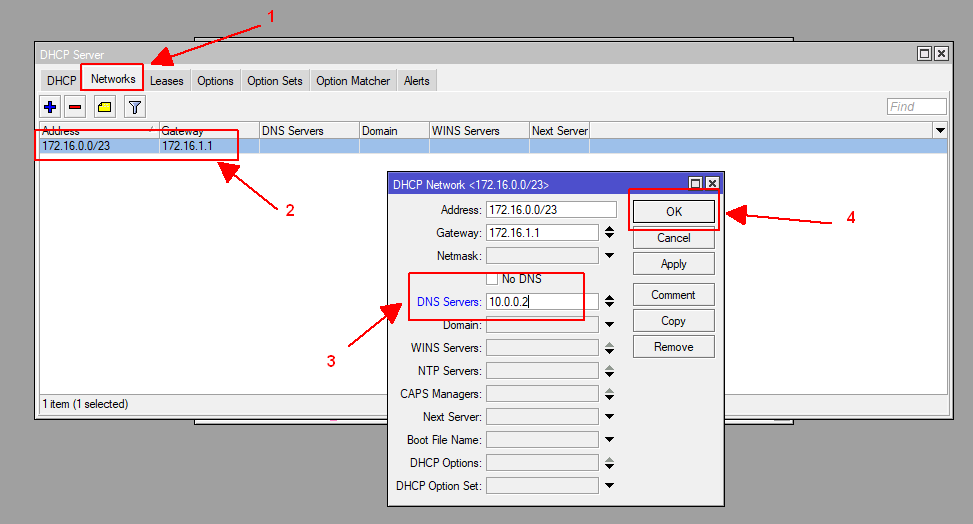
http://10.0.0.2:3000to complete the initial AdGuard Home setup. - After setup, set the DHCP DNS server to AdGuard Home under IP > DHCP Server > Network.
This article also refers to the MikroTik Container documentation.
Good luck!
Comments & Discussion
Share your thoughts, ask questions and feedback