How to Configure OpenWrt as an Access Point and Add a Guest VLAN

Nghia Phan
Table of Contents
{{< notice “tip” >}}
- See how to configure PPPoE on OpenWrt.
- See how to configure PPPoE with a VLAN ID. {{< /notice >}}
Purpose
- Configure OpenWrt as an AP when another modem or router already provides DHCP.
- In this mode, the OpenWrt router mainly provides Wi-Fi. DHCP, load balancing, DNS server, and firewall functions are disabled on it.
- Create a VLAN-backed Guest Wi-Fi with multiple SSIDs and separate bandwidth policies.
- Both the modem and router must support VLANs. Bandwidth limits, load balancing, and captive-portal features depend on the upstream router.
- This example uses an OPNsense PC router behind a Viettel PPPoE connection. The main DHCP range is
172.16.1.1to172.16.3.254; the Guest range is172.16.16.1to172.16.16.254.
Configure OpenWrt as an AP
- Connect a LAN cable from a LAN port on the modem to a LAN port on the router. You can use a Cat6 network cable from Shopee if you need a separate cable for configuration. {{< notice “info” >}} Use LAN-to-LAN. OpenWrt does not use the WAN port in this AP mode. {{< /notice >}}
- Set a static LAN IP in the same subnet as the main modem.
{{< notice “info” >}} For example, if the modem is
172.16.1.1, set the AP to172.16.1.2. {{< /notice >}} - Set the DNS server and gateway to the modem address,
172.16.1.1in this example.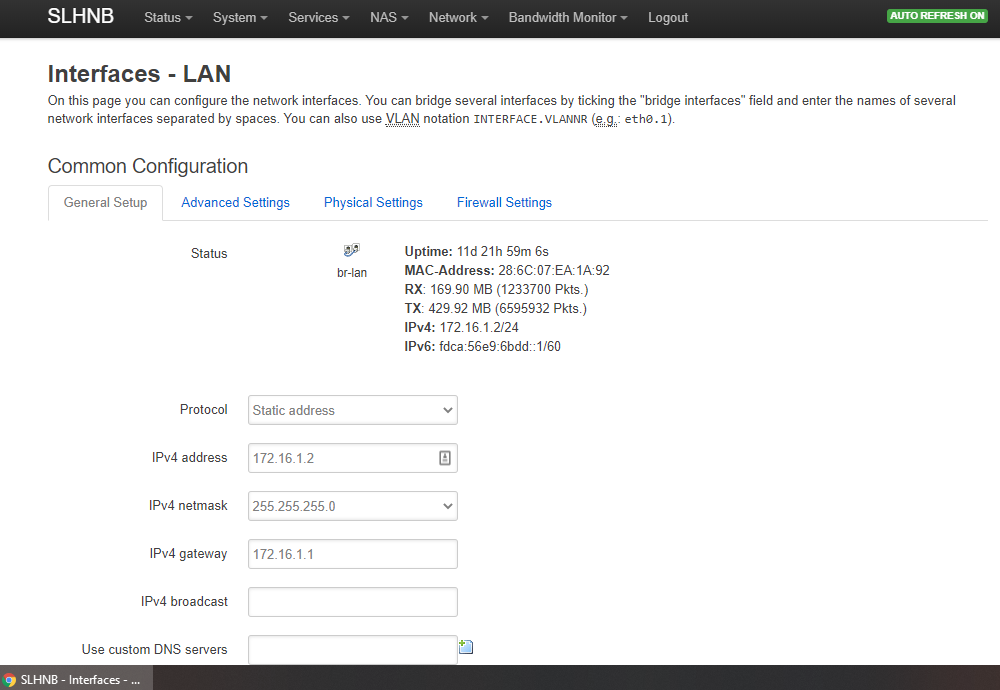
- Under DHCP Server, select Disable DHCP for this interface.
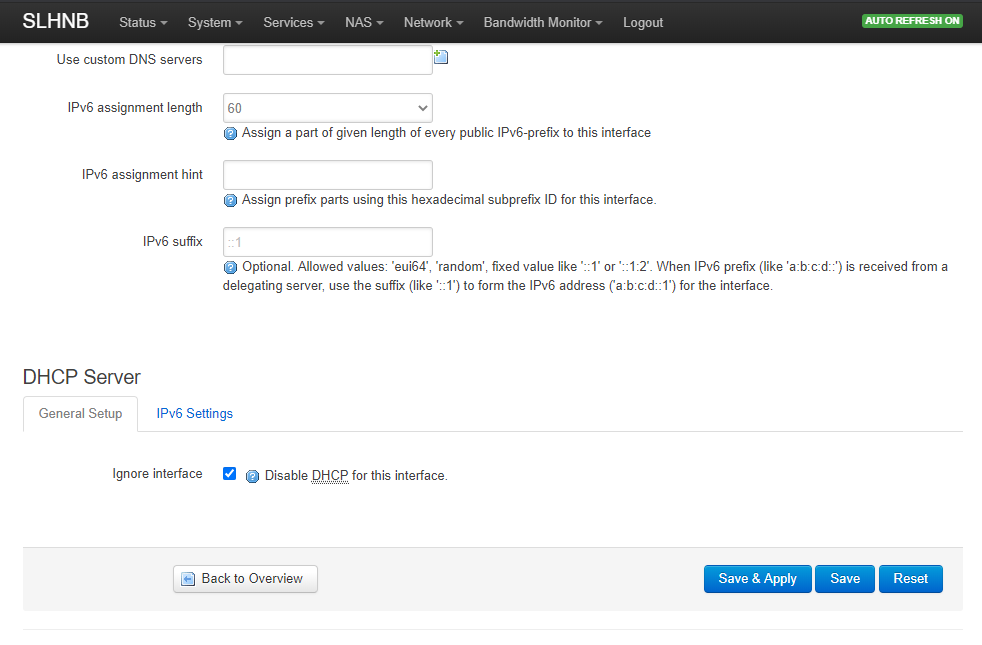
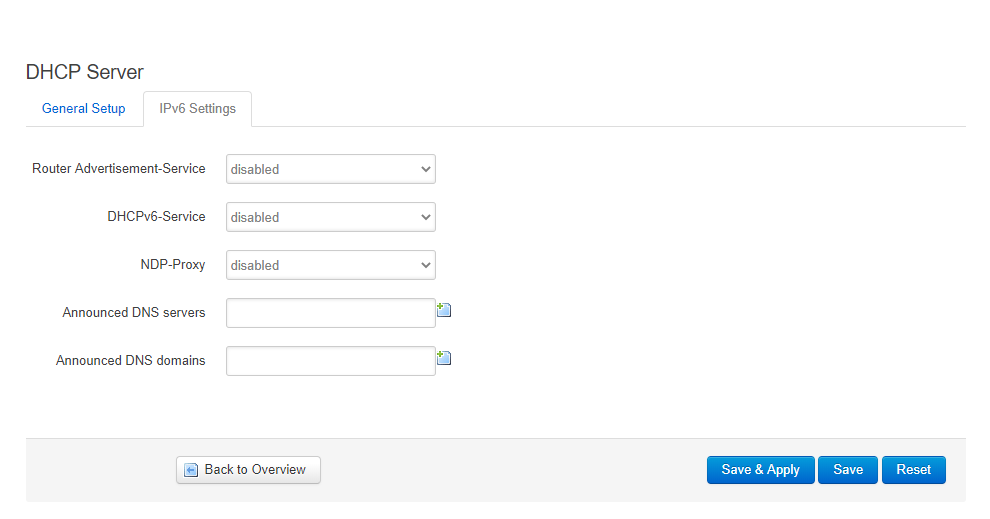
- In the IPv6 tab, disable the options shown in the screenshot.
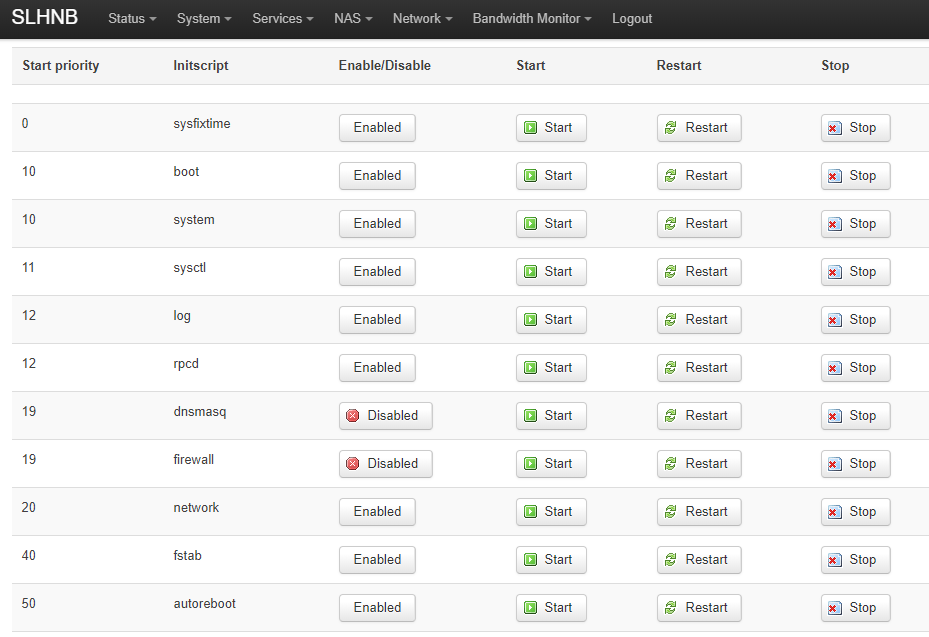
- Open System → Startup and disable DHCP Server, Firewall, DNSMASQ, and ODHCPD if present.
- Click Save and Apply, connect the computer to port 2, and browse to
172.16.1.2to test.
{{< notice “info” >}}
If the home network uses DLNA, UPnP, or SMB devices such as smart TVs and Chromecast speakers, enable igmp_snooping to avoid discovery problems.
Over SSH, add option igmp_snooping '1' under config interface 'lan' in /etc/config/network:
config interface 'lan' option type 'bridge' option ifname 'eth0.1' option proto 'static' option netmask '255.255.255.0' option ip6assign '60' option ipaddr '172.16.1.2' option gateway '172.16.1.1' option igmp_snooping '1'{{< /notice >}}
Configure a VLAN for Guest Wi-Fi
- Log in to the router, open Network → Wireless, and create the required access points. This example creates two 2.4 GHz and two 5 GHz SSIDs named
testandtest-guest.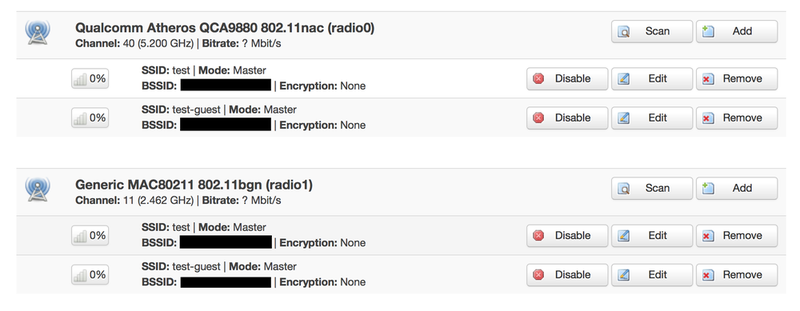
- Open Network → Switch.
- Enable VLAN functionality.
- Enter the VLAN ID configured on OPNsense.
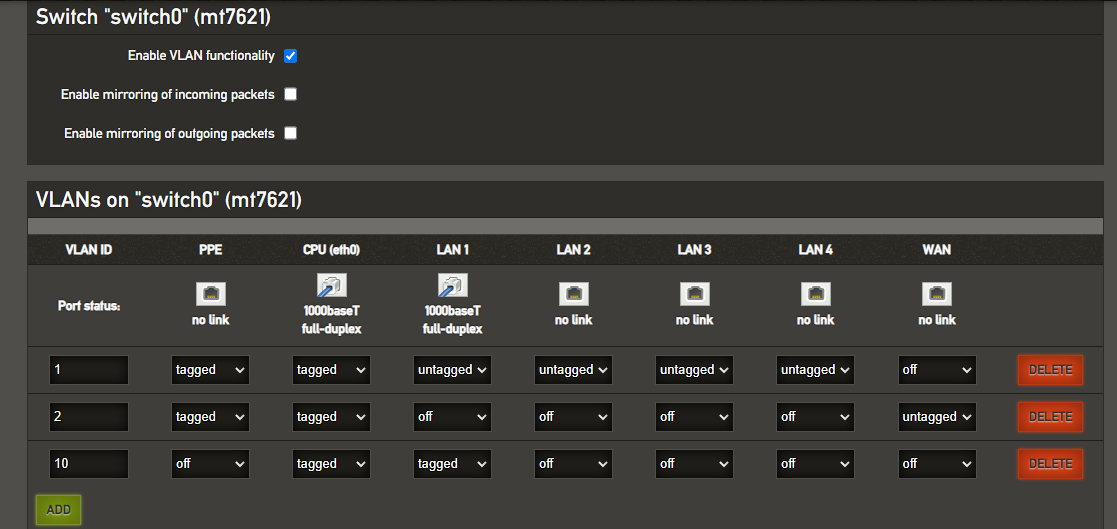
- After saving, open Network → Interfaces.
- Click Add new Interface.
- Enter a name under Name of the new interface.
- Under Cover the following interface, select VLAN Interface: eth0.10.
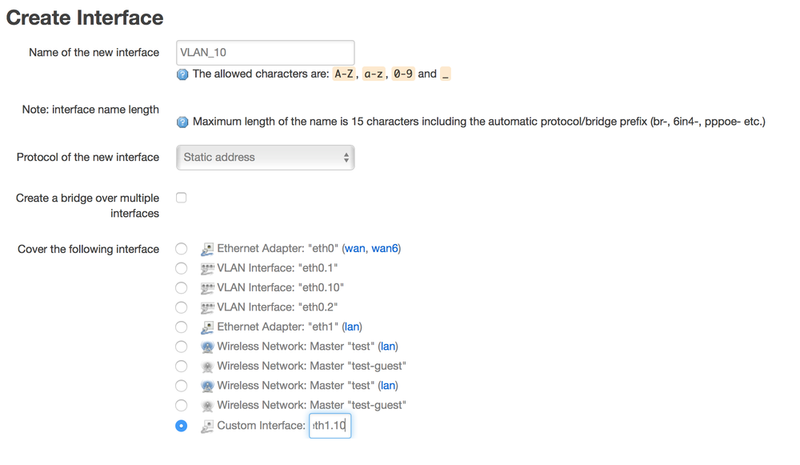
- Click Save.
- In Physical Settings, select VLAN Interface: eth0.10 and the two wireless networks named
test-guest.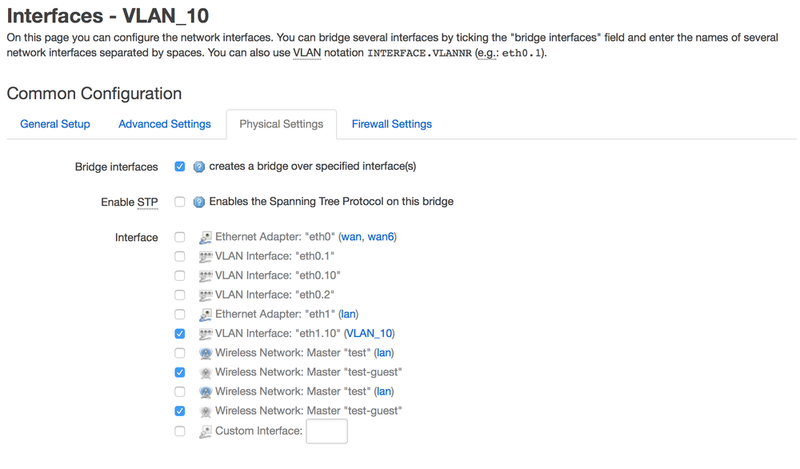
- Click Save and Apply.
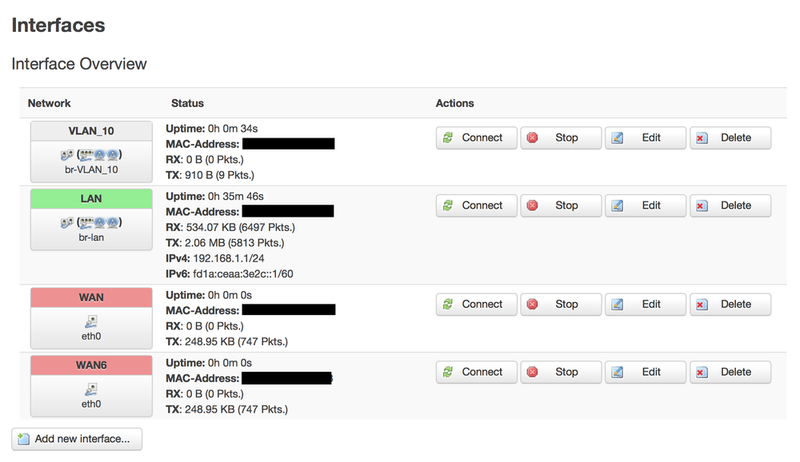
- Test the configuration.
Bonus: use the WAN port
If you need to use the WAN port as well, follow the original port-mapping example from @Dương Chấn Huy: {{< collapse “Screenshot” >}}
- 1
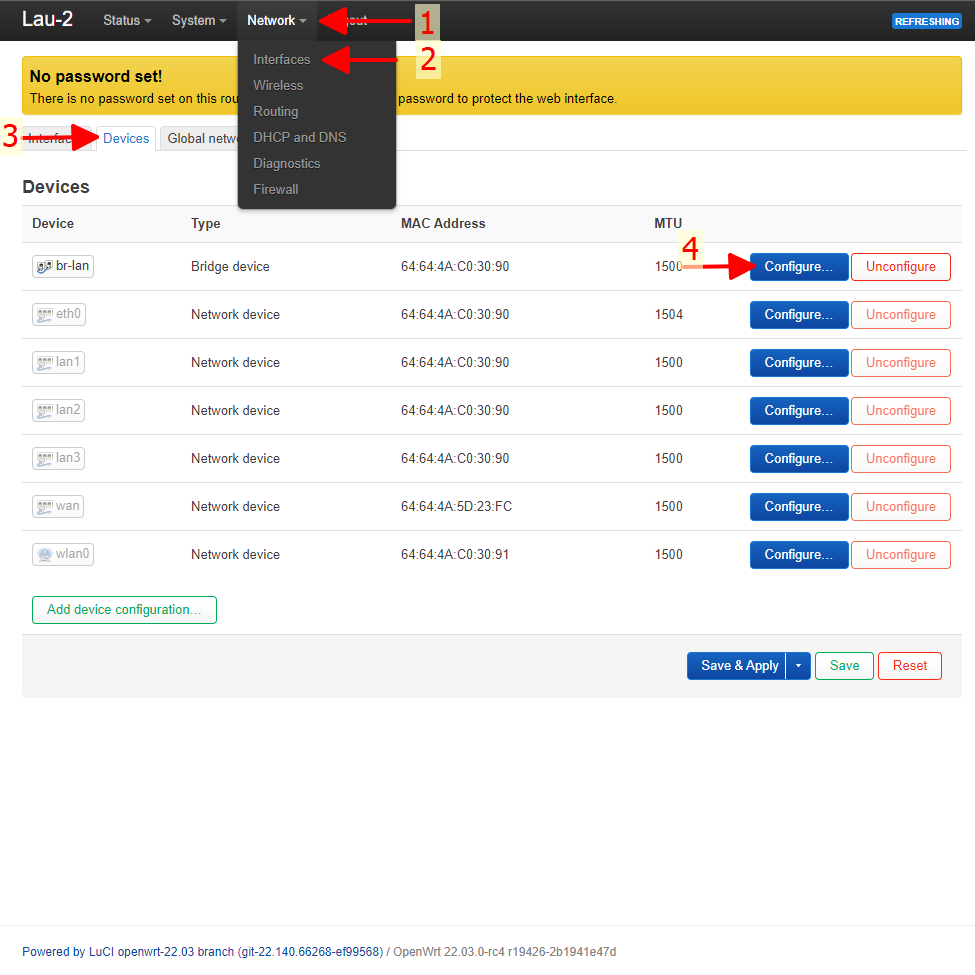
- 2
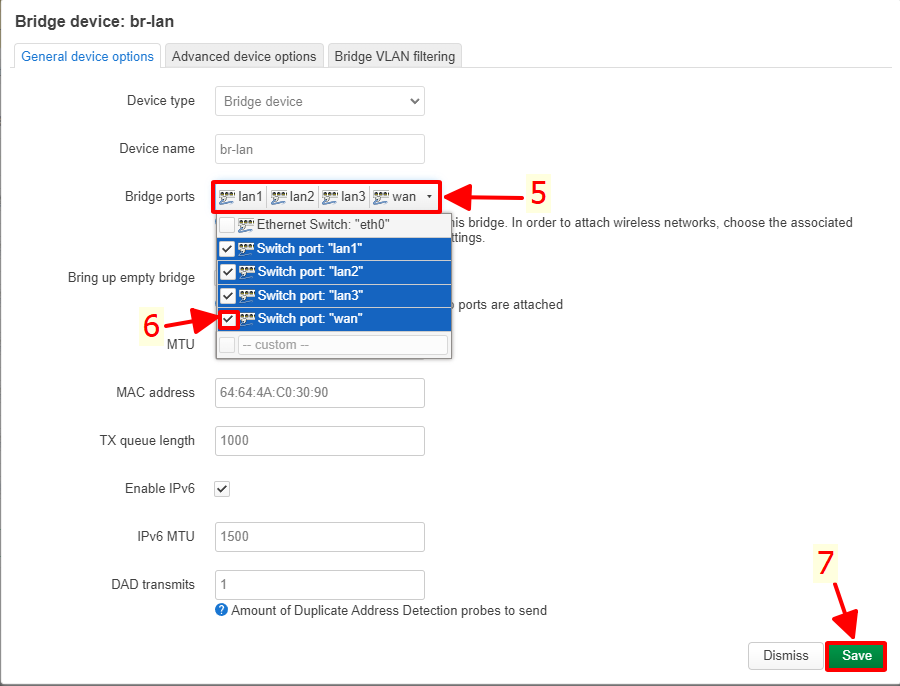 {{< /collapse >}}
Good luck!
Tags:
#openwrt
Comments & Discussion
Share your thoughts, ask questions and feedback