Using Python to Automatically Create Subtitles for Videos

Sometimes I find interesting videos in English while browsing the web, but my English is not good enough to follow everything. Creating subtitles and translating them into my native language is a practical solution. One option is to upload the video to YouTube and let YouTube generate subtitles, but that can take time.
A few days ago, I found a useful Facebook post explaining how to use Python to automatically create an
.srtsubtitle file. Once the subtitle file is available, it can be translated with another tool.This guide uses Windows 10. The same general idea can also be used on Linux or macOS.
AutoSub (Python)
{{< ads >}}
Autosub is a utility for automatically recognizing speech and creating subtitles. It accepts a video or audio file as input, detects speech activity to find speech segments, sends parallel requests to the Google Web Speech API to generate subtitles, optionally translates them into another language, and finally saves the subtitle file to disk. It supports multiple input and output languages, which can be listed with --list-languages, and can generate SRT or JSON output.
See the author’s GitHub repository for details.
Requirements
- Python 2.7 installed on the computer (download).
- Note: Select Add Python.exe to Path during installation.
- Install FFMPEG from this link or use the mirror.
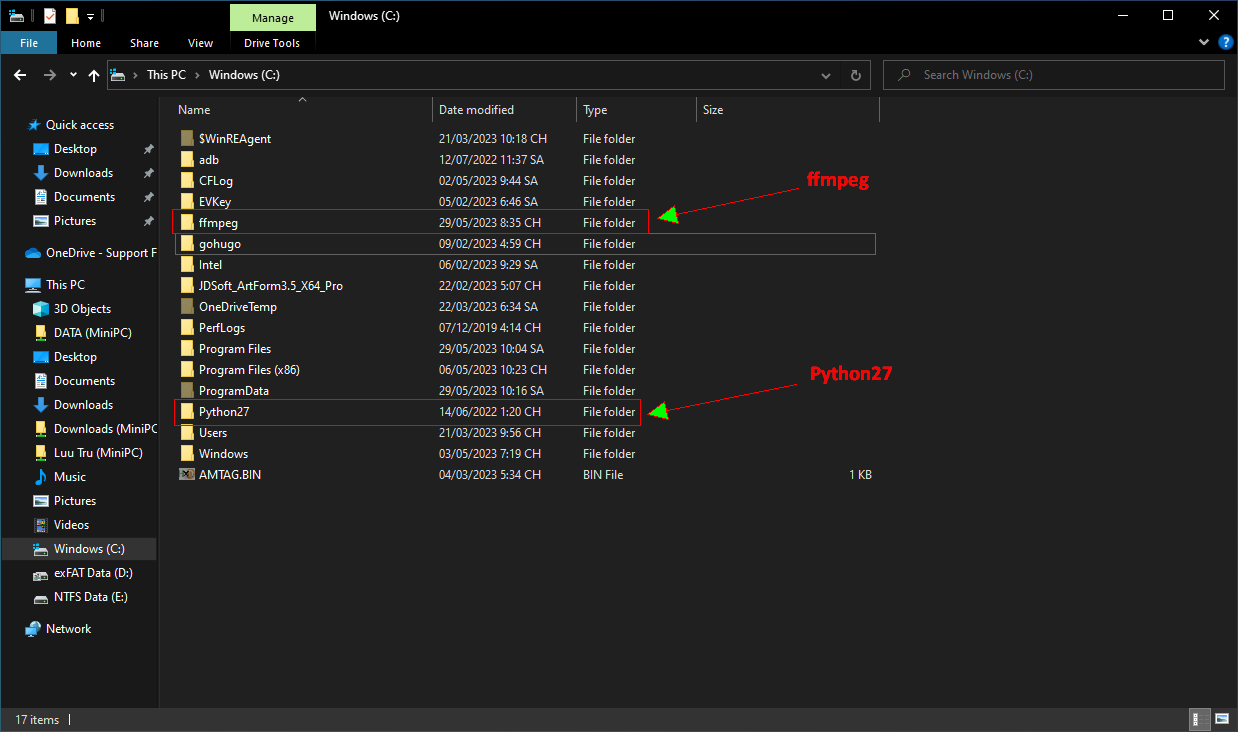
- Extract FFMPEG to
C:\FFMPEG. - Copy
ffmpeg.exefromC:\ffmpeg\bintoC:\Python27.
- Extract FFMPEG to
{{<collapse “Screenshot”>}}
 {{}}
{{}}
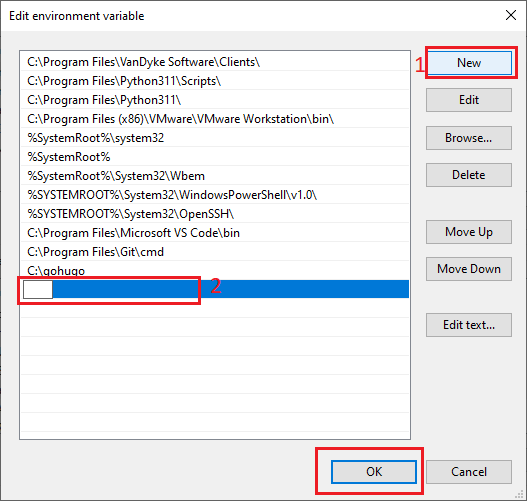
- Add C:\Python27, C:\Python27\scripts, and C:\FFMPEG\bin to the System variables as shown in the screenshots.
{{<collapse “How to add system variables”>}}
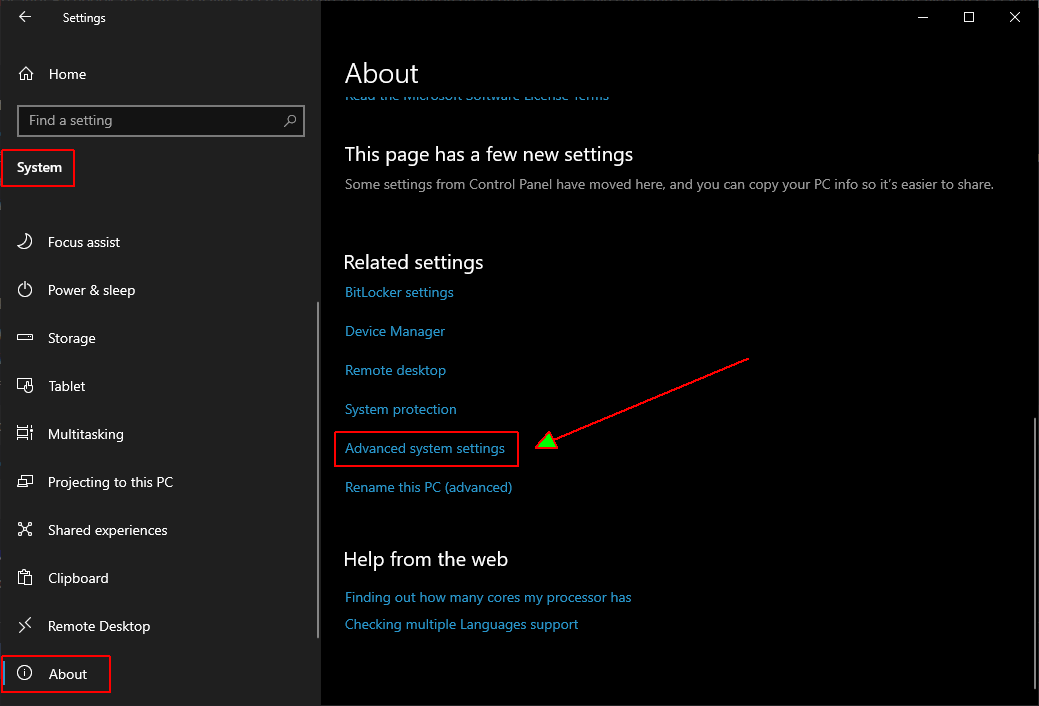
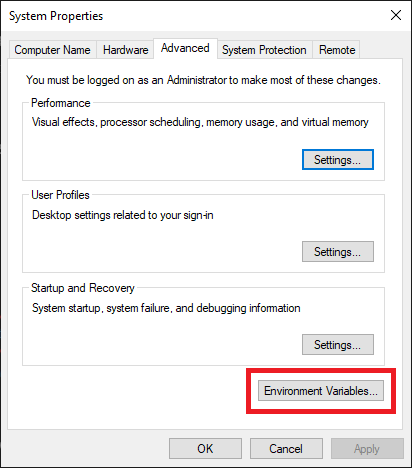
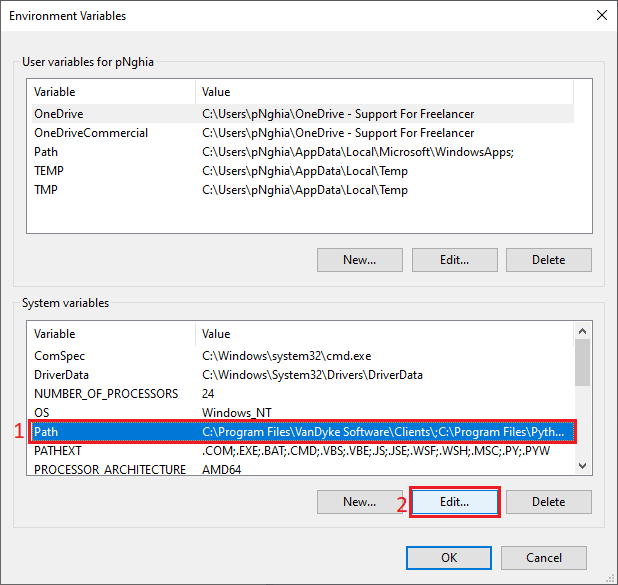 Click New and add C:\Python27, C:\Python27\scripts, and C:\FFMPEG\bin one by one.
 {{}}
{{}}
Installing Autosub
- Open Command Prompt as Administrator and run
pip install autosub. - A successful installation should look like the screenshot below.

-
Replace the original application file with the fixed version:
- Download the fixed file here.
- Open
C:\Python27\scripts, renameautosub_app.pytoautosub_app.py.bakso that the original can be restored later, and copy the downloadedautosub_app.pyinto the same directory.
-
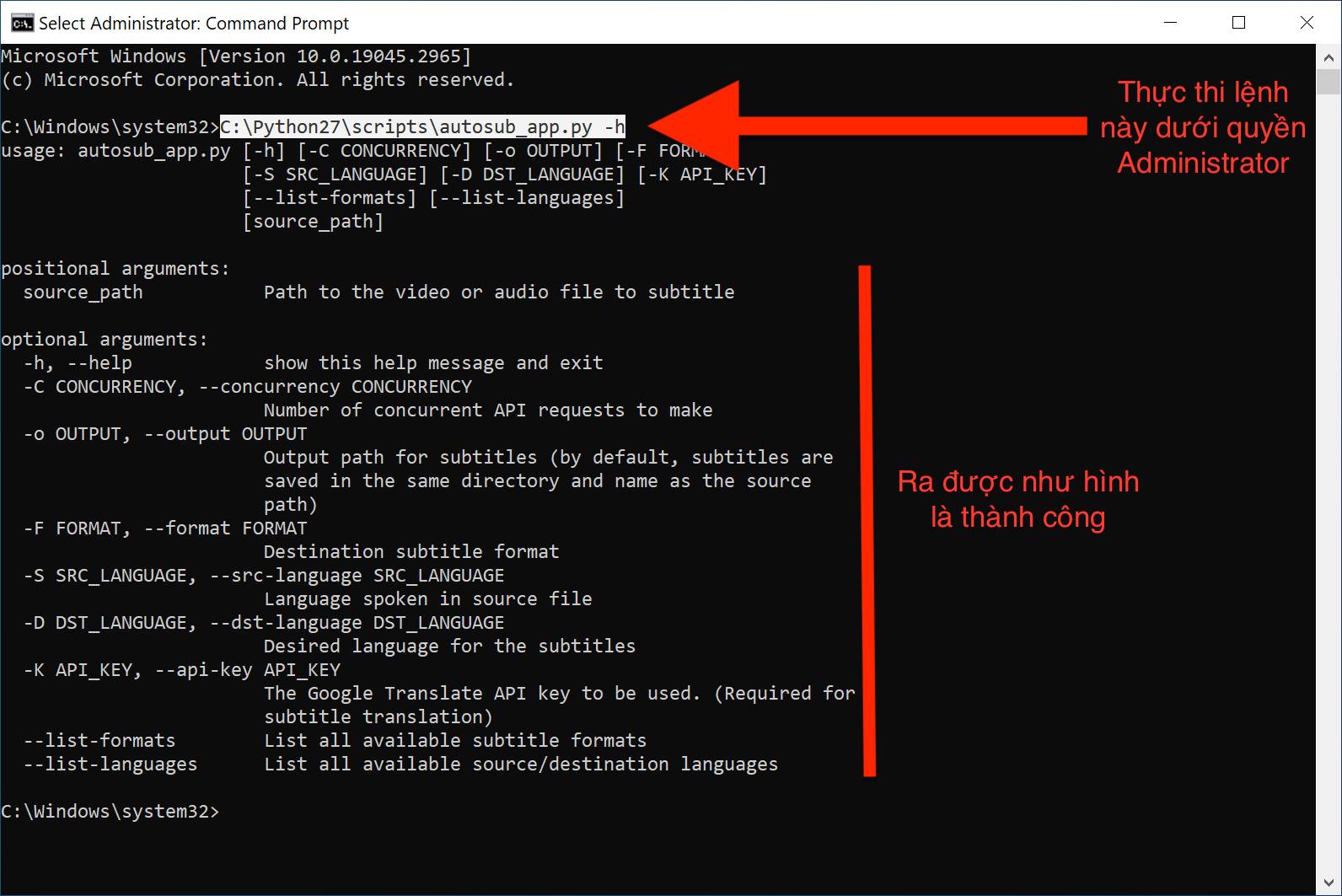
Test the installation by opening Command Prompt as Administrator and running
C:\Python27\scripts\autosub_app.py -h. -
If the help output looks like the screenshot, the installation is working. {{<collapse “Screenshot”>}}
 {{}}
{{}} -
Create a right-click menu shortcut by opening Notepad and pasting this code:
C:\Python27\python.exe C:\Python27\scripts\autosub_app.py %1Save the file with a .bat extension.
- Press Windows + R, paste
%APPDATA%\Microsoft\Windows\SendTo, and press Enter. - Drag the
.batfile into that folder. The result should look like the screenshot below. {{<collapse “Screenshot”>}}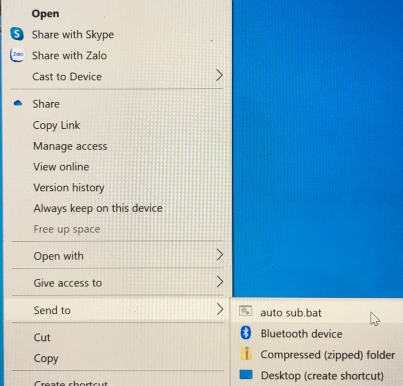 {{}}
{{}}
After completing the setup, right-click a video, choose Send to, and select the .bat file. Wait for the .srt file to be generated in the same folder as the video.
Good luck!
Comments & Discussion
Share your thoughts, ask questions and feedback