Xiaomi Redmi AX6: OpenSSH and OpenWrt Installation

- The router is not officially supported by OpenWrt, but the LEDE project by Lean provides firmware for the Redmi AX6.
- This guide covers unlocking SSH and installing OpenWrt on the Redmi AX6 (RA69).
Specifications
|||| |-|-| |CPU|IPQ8071A 4-core A53 1.4GHz + dual-core 1.7GHz NPU| |ROM|128MB| |RAM|512MB| |Router class|AX3000| |Wi-Fi class|2T2R 2.4GHz 574Mbit/s + 4T4R (2T2R-160MHz, 4T4R-80MHz) 2402Mbit/s| |2.4GHz|Qualcomm QCN5024, 2x2 802.11ax, up to 574Mbps| |5GHz|Qualcomm QCN5054, 4x4 802.11ax, up to 2402Mbps| |Antenna|6 external high-gain antennas with external dual-band amplifiers| |Ports|1x 10/100/1000 WAN + 3x 10/100/1000 LAN, Auto MDI/MDIX| |Modulation|DSSS: DBPSK, DQPSK, CCK| |11a/g|OFDM: BPSK, QPSK, 16QAM, 64QAM| |11n: MIMO-OFDM|BPSK, QPSK, 16QAM, 64QAM; MCS0–MCS15| |11ac: MIMO-OFDM|BPSK, QPSK, 16QAM, 64QAM, 256QAM; MCS0–MCS9| |Rate set|MCS0–MCS9, up to 4 streams| |11ax|MIMO-OFDM with BPSK, QPSK, 16QAM, 64QAM, 256QAM, and 1024QAM; MCS0–MCS11|
!!! HIGH-RISK PROCEDURE
- The instructions below were collected from Chinese forums. Because the router is not officially supported by OpenWrt and cannot use Breed or pb-boot, switching between firmware versions is complicated. Proceed only if you accept the risk.
| Stock ROM | Version | Link |
|---|---|---|
| 1.1.14 (February 21, 2023) |
I. Enable SSH
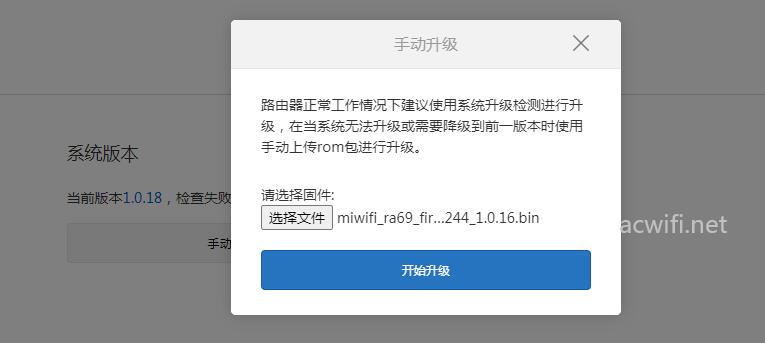
- The Redmi AX6 must run firmware 1.0.16 or 1.0.18 to unlock SSH. If a newer firmware is installed, downgrade directly through the MiWiFi management interface.
- Download stock firmware 1.0.16 and 1.0.18 here.
📂 Firmware downgrade screenshot ▼
For the SSH steps, follow the detailed OpenSSH CR660x guide, but skip the pb-boot installation step.
Use the attached xqsystem.lua file. This version differs from the CR660x file because it adds commands to set the SSH username and password.
- 📄Downloadxqsystem.lua755 B • 0 downloads
To read boot logs, prepare a USB-to-TTL adapter such as this FT232 adapter. Connect only GND, RX, and TX according to the wiring diagram; do not connect VCC until the voltage is confirmed.
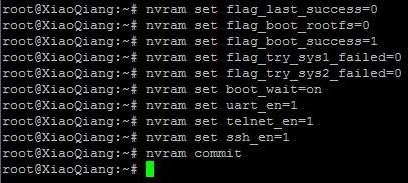
nvram set flag_last_success=0nvram set flag_boot_rootfs=0nvram set flag_boot_success=1nvram set flag_try_sys1_failed=0nvram set flag_try_sys2_railed=0nvram set boot_wait=on # wait for the user a key on boot for UART accessnvram set uart_en=1 # enable serial port for writenvram set telnet_en=1 # enable telnetnvram set ssh_en=1 # enable sshnvram commit📂 Screenshot ▼
To create a backup of the rootfs:
mkdir /tmp/syslogbackup/dd if=/dev/mtd9 of=/tmp/syslogbackup/mtd9📂 Screenshot ▼

Open http://192.168.31.1/backup/log/mtd9 in a browser to download the backup.
II. OpenWrt firmware by Lean (LEDE)
See the OpenWrt configuration guide series.
Requirements
- A Redmi AX6 with SSH enabled and PuTTY. Windows PowerShell can also be used without installing PuTTY.
- OpenWrt for Redmi AX6 (RA69): Google Drive download.
- Find newer Redmi AX6 builds on Robimarko’s GitHub.
- Use openwrt-ipq807x-generic-redmi_ax6-squashfs-nand-factory.ubi when flashing from stock ROM.
- Use openwrt-ipq807x-generic-redmi_ax6-squashfs-nand-sysupgrade.bin when upgrading an existing OpenWrt installation.
Source code for building firmware: https://github.com/coolsnowwolf/lede/
Flashing
On Windows, open PowerShell and run:
scp C:\Users\xxxxxx\Desktop\openwrt-ipq807x-nss-redmi_ax6-squashfs-nand-factory.ubi [email protected]:/tmp# IMPORTANT: change C:\Users\xxxxxx\Desktop\ to the actual firmware path.Use PuTTY, or ssh [email protected] in PowerShell, to log in with root/admin.
Run nvram get flag_boot_rootfs.
- If it returns
1:
ubiformat /dev/mtd12 -y -f /tmp/openwrt-ipq807x-nss-redmi_ax6-squashfs-nand-factory.ubi -s 2048 -O 2048fw_setenv flag_last_success 0fw_setenv flag_boot_rootfs 0reboot- If it returns
0:
ubiformat /dev/mtd13 -y -f /tmp/openwrt-ipq807x-nss-redmi_ax6-squashfs-nand-factory.ubi -s 2048 -O 2048fw_setenv flag_last_success 1fw_setenv flag_boot_rootfs 1rebootAfter reboot, open 192.168.1.1 to access OpenWrt.
III. Unbrick the Redmi AX6
If the router is bricked, download Redmi AX6 stock firmware and use MiWiFiRepair Tools to recover it.
- Download stock firmware 1.0.16 and 1.0.18 here.
- See the MIWIFI RepairTool guide.
- Thanks to
fb://@Hoàng Khangfor testing successfully and providing screenshots.
Good luck. 😉 If you have questions or suggestions, contact me. I will help as far as I can.
Comments & Discussion
Share your thoughts, ask questions and feedback