How to Use MiWiFi RepairTool


📂 Supported devices ▼
The Xiaomi routers listed below are supported. Xiaomi routers with original firmware in *.bin format, such as CR660x, can also use MiWiFi RepairTool.
- Find and download the original firmware from the MiWiFi download page.
- Xiaomi Router 4
- Xiaomi Router 4C
- Xiaomi Router 4Q
- Xiaomi Router 4A
- Xiaomi Router 4A Gigabit Edition
- Xiaomi Router 4 Pro
- Xiaomi AIoT Router AC2350
- Xiaomi Mesh Router
- Xiaomi Router AC2100
- Redmi Router AC2100
- Xiaomi AIoT Router AX3600
- Xiaomi Router AX1800
- Redmi Router AX5
- Redmi Router AX6
- Redmi Router AX3000
- Xiaomi Router AX6000
- Xiaomi Router AX9000
- Temporarily disable antivirus on the PC before starting.
- If the router is running stock firmware normally, upgrade through OTA or the router’s management interface instead.
- Use an Ethernet cable to connect the router to the PC.
B1. Download MiWiFi RepairTool
- Open http://www.miwifi.com/miwifi_download.html.
- Scroll down to the middle of the page and click the blue download button.
📂 Screenshot ▼
Click the button highlighted in red.

- If antivirus software blocks the download, disable it temporarily and enable it again when finished.
- This is Xiaomi’s official tool, downloaded from Xiaomi’s official website.
- Some network adapters disconnect automatically. If this happens, try another adapter.
- Some Windows 11 versions may be incompatible or produce errors.
B2. Restore stock firmware with MiWiFi RepairTool
- Unplug the router, hold the reset button, and reconnect power. Wait until the yellow light flashes quickly.
- Connect the router to the PC with an Ethernet cable.
- Extract the downloaded
MiWiFiRepairTool.x86.ziparchive. - Double-click
MiWiFiRepairTool.x86.exeto launch the tool.
Follow the instructions shown in each screenshot:
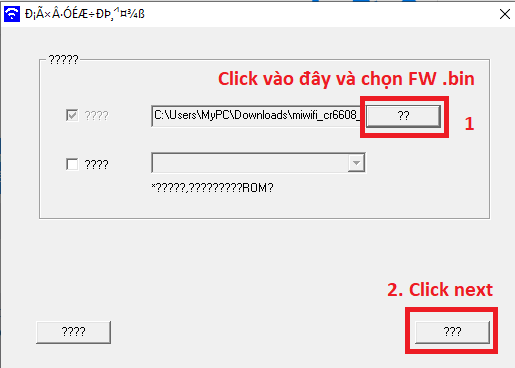
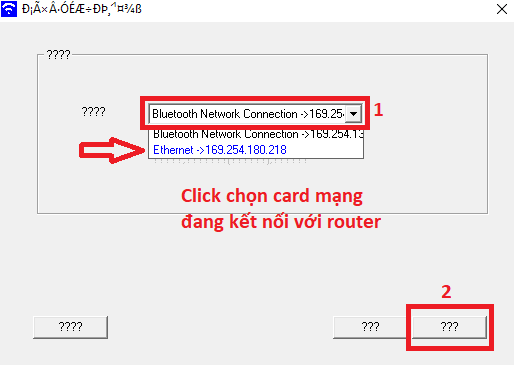
After clicking Next at this step, do not click the ?? button at the final step. Doing so closes the program and can make the flash appear to fail.
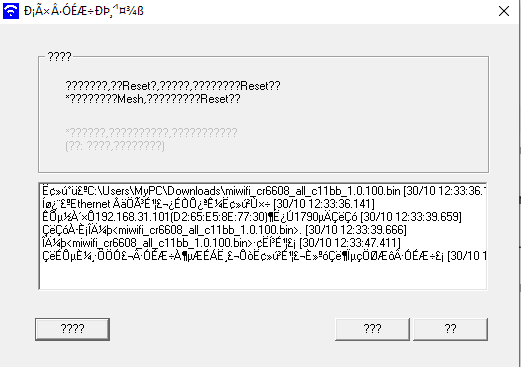
Do not click the ?? button at this step.
Wait about 3–5 minutes. A flashing green light indicates that the flash has completed successfully. After that, reboot the router.
If the router does not flash green, use the following table as a reference:
| Signal | Description |
|---|---|
| Solid green | Router is operating normally. |
| Blinking green | Flash completed successfully; power-cycle the router. |
| Solid orange | Processing. |
| Blinking orange | Waiting to receive the file. |
| Solid red | System error. |
| Blinking red | Flash failed. |
Thanks to fb://@Hoàng Khanh for providing the screenshots and for being one of the people who restored stock firmware to a CR660x using the related guide.
Good luck 😉
Comments & Discussion
Share your thoughts, ask questions and feedback