How to Configure PPPoE on OpenWrt

Nghia Phan
This guide configures PPPoE on OpenWrt after the ISP modem has been placed in bridge mode.
It covers PPPoE without a VLAN. Use it when your ISP does not require a VLAN, or when the modem can set the VLAN ID in its bridge configuration.
If the modem has no VLAN field but the PPPoE connection requires one, use the OpenWrt PPPoE with VLAN guide instead.
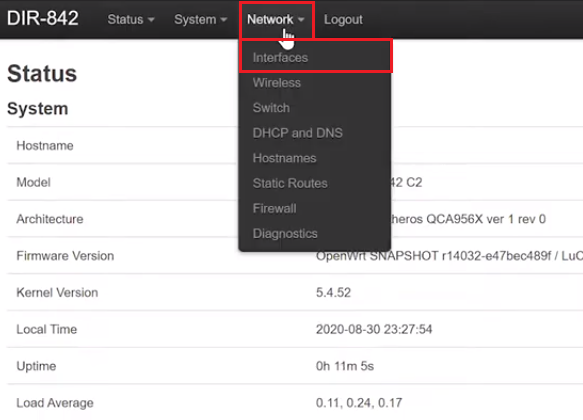
Log in to OpenWrt and open Network > Interfaces.
📂 Screenshot ▼
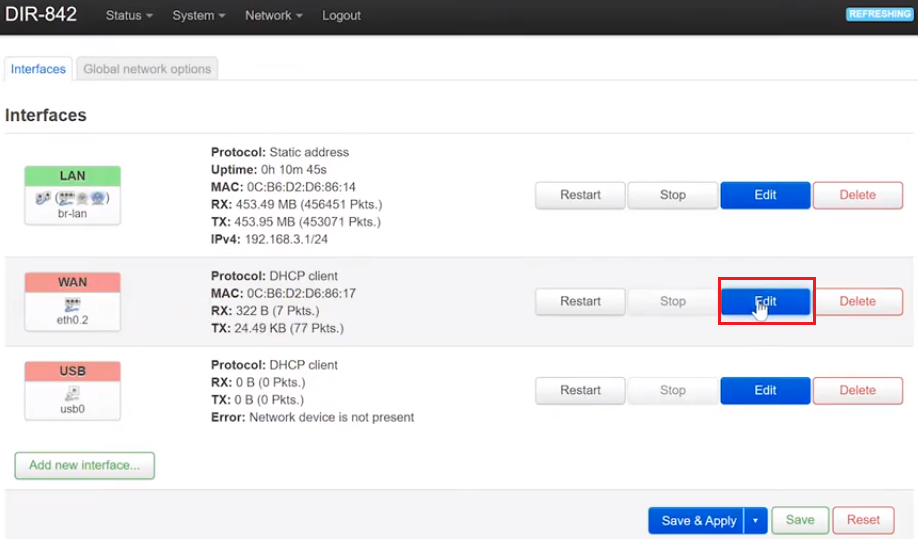
- Under WAN, click Edit.
📂 Screenshot ▼
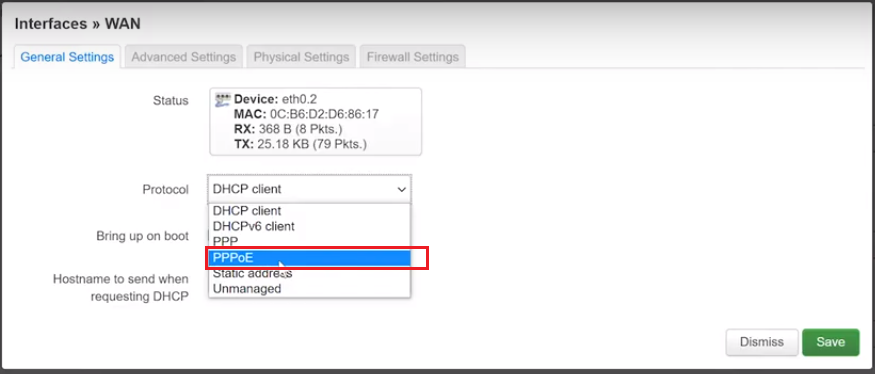
- In General Settings, set Protocol to PPPoE.
📂 Screenshot ▼
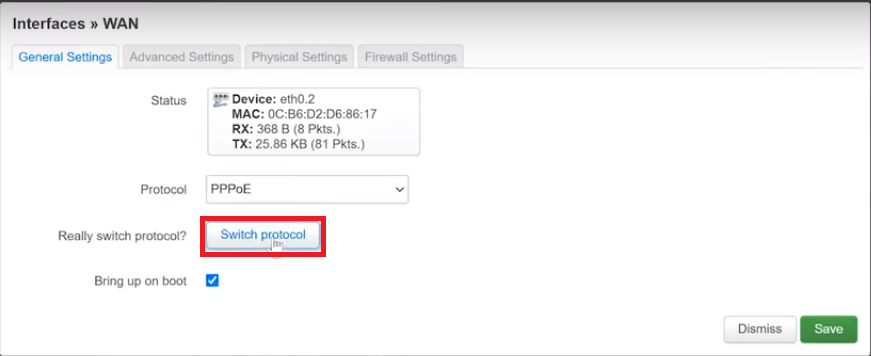
Click Switch Protocol.
📂 Screenshot ▼
Additional fields will appear:
- Enter the ISP-provided account in PAP/CHAP Username.
- Enter the ISP-provided password in PAP/CHAP Password.
📂 Screenshot ▼
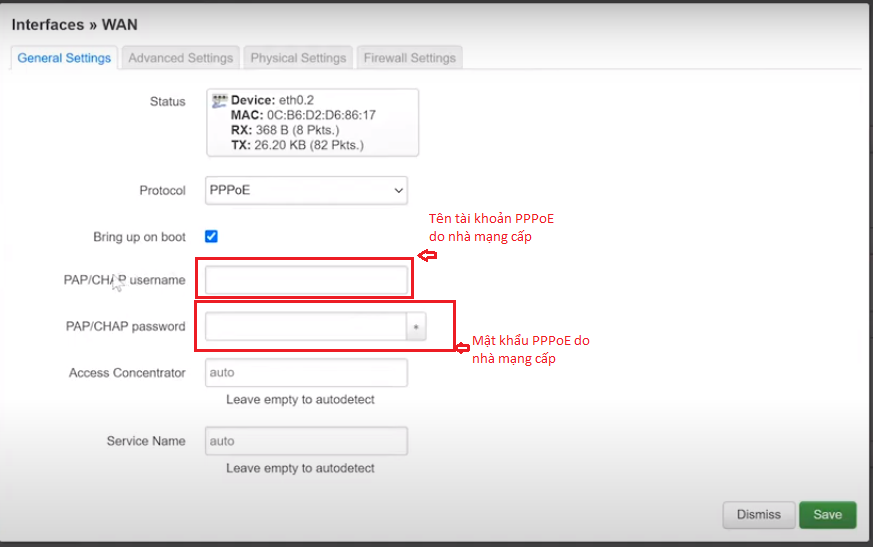
After entering the credentials, click Save, then Save & Apply.
📂 Screenshot ▼
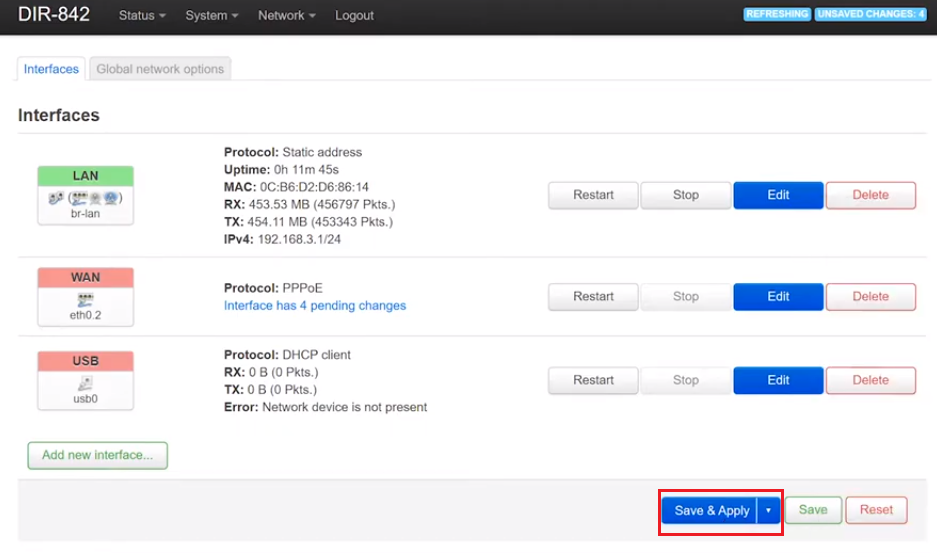
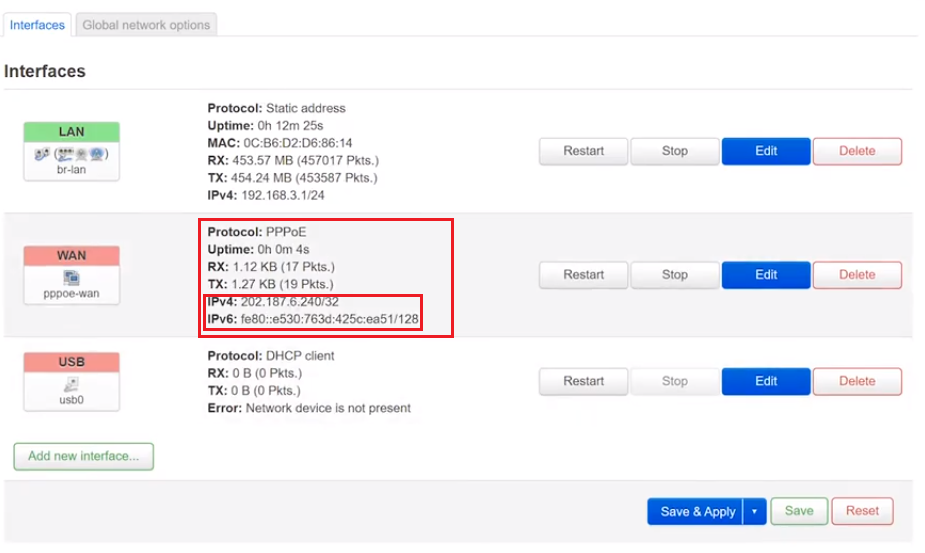
If the username and password are correct, WAN will show an IPv4 address and, if available, an IPv6 address.
📂 Screenshot ▼
ℹ️ Thông tin
- PPPoE may connect immediately or may take a few minutes.
- If the credentials are correct but PPPoE still fails, check the modem’s bridge configuration, the VLAN required by the ISP, and whether the ISP requires a cloned MAC address.
If you already have a modem and only want OpenWrt to provide Wi-Fi, see the OpenWrt AP Mode guide.
Good luck!
Tags:
#openwrt
Comments & Discussion
Share your thoughts, ask questions and feedback