How to Configure OpenWrt as an Access Point and Add a Guest VLAN

Nghia Phan

Table of Contents
💡 Mẹo hay
Purpose
- Configure OpenWrt as an AP when another modem or router already provides DHCP.
- In this mode, the OpenWrt router mainly provides Wi-Fi. DHCP, load balancing, DNS server, and firewall functions are disabled on it.
- Create a VLAN-backed Guest Wi-Fi with multiple SSIDs and separate bandwidth policies.
- Both the modem and router must support VLANs. Bandwidth limits, load balancing, and captive-portal features depend on the upstream router.
- This example uses an OPNsense PC router behind a Viettel PPPoE connection. The main DHCP range is
172.16.1.1to172.16.3.254; the Guest range is172.16.16.1to172.16.16.254.
Configure OpenWrt as an AP
- Connect a LAN cable from a LAN port on the modem to a LAN port on the router. You can use a Cat6 network cable from Shopee if you need a separate cable for configuration.
ℹ️ Thông tin
Use LAN-to-LAN. OpenWrt does not use the WAN port in this AP mode.
- Set a static LAN IP in the same subnet as the main modem.
ℹ️ Thông tin
For example, if the modem is 172.16.1.1, set the AP to 172.16.1.2.
- Set the DNS server and gateway to the modem address,
172.16.1.1in this example.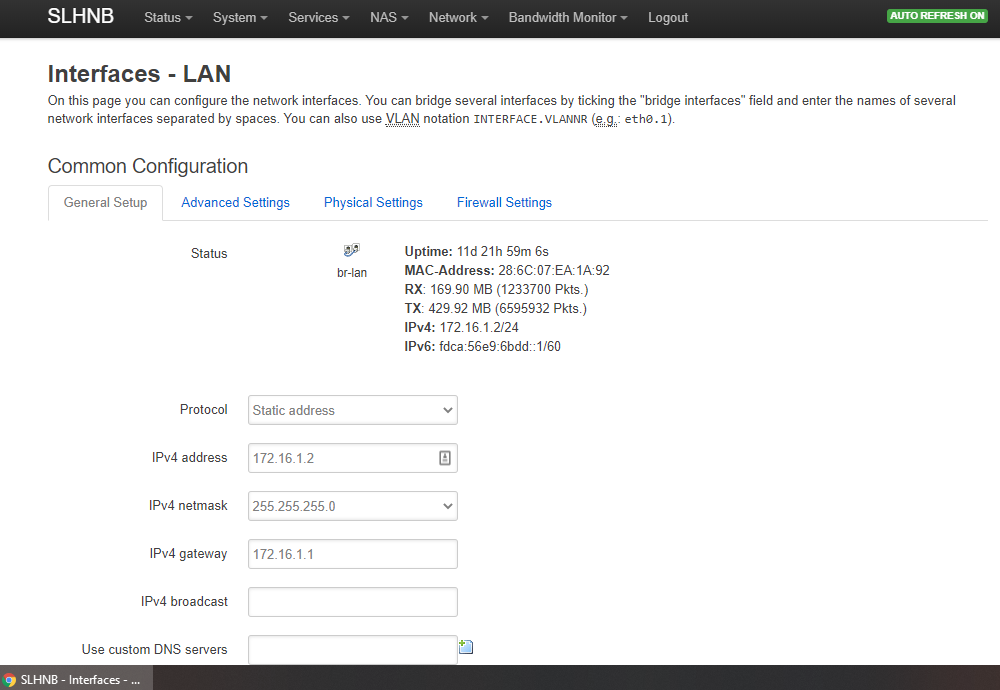
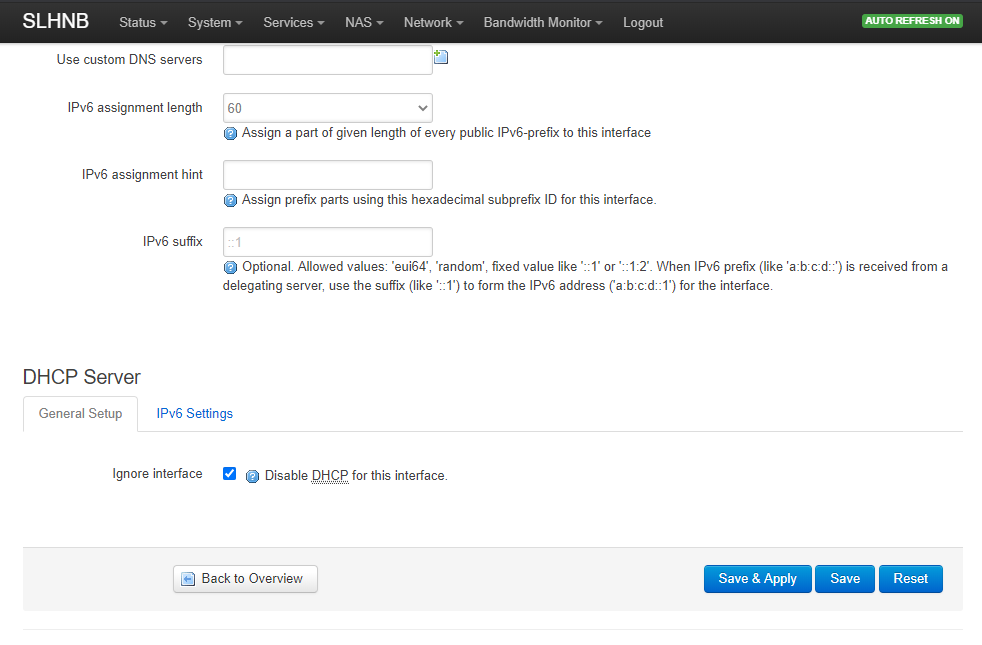
- Under DHCP Server, select Disable DHCP for this interface.
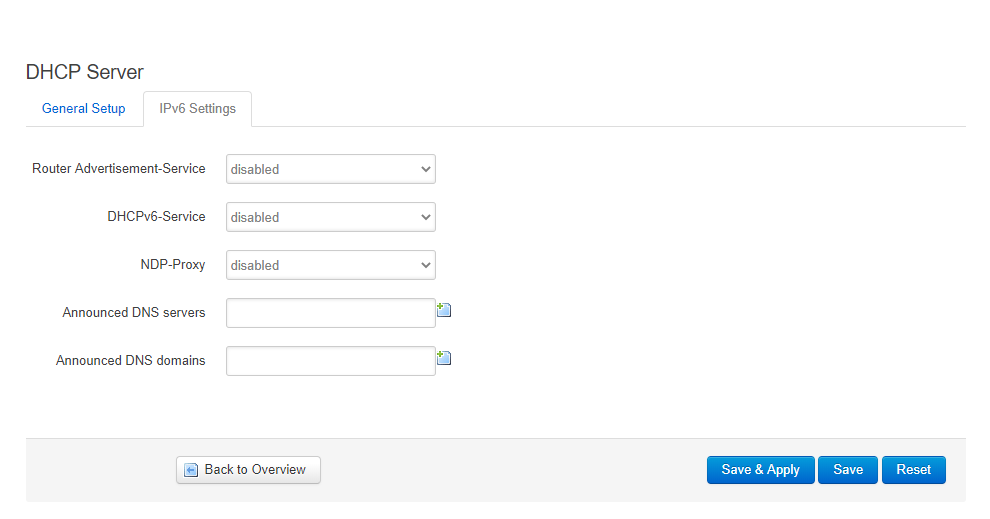
- In the IPv6 tab, disable the options shown in the screenshot.
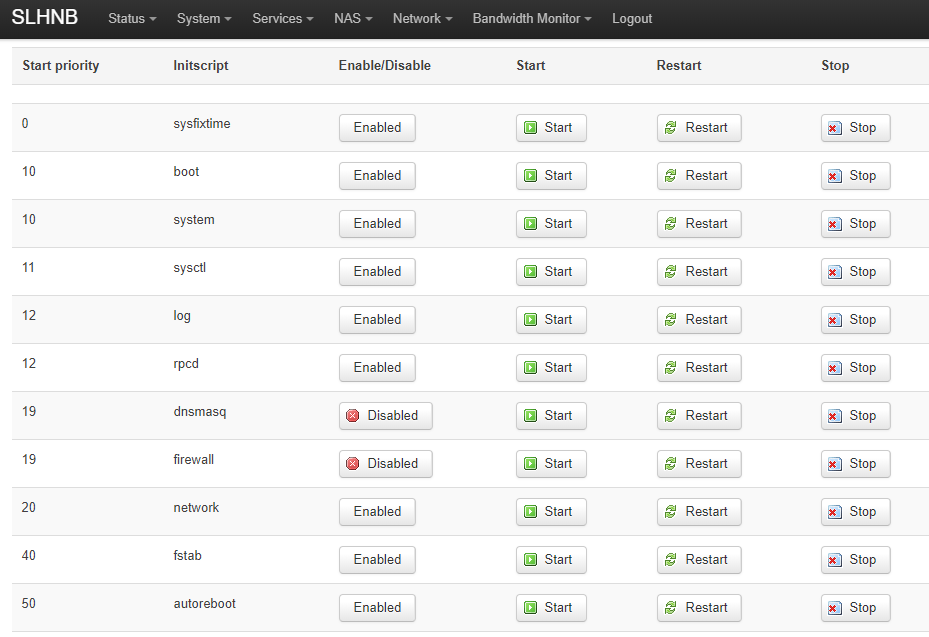
- Open System → Startup and disable DHCP Server, Firewall, DNSMASQ, and ODHCPD if present.
- Click Save and Apply, connect the computer to port 2, and browse to
172.16.1.2to test.
ℹ️ Thông tin
If the home network uses DLNA, UPnP, or SMB devices such as smart TVs and Chromecast speakers, enable igmp_snooping to avoid discovery problems.
Over SSH, add option igmp_snooping '1' under config interface 'lan' in /etc/config/network:
config interface 'lan' option type 'bridge' option ifname 'eth0.1' option proto 'static' option netmask '255.255.255.0' option ip6assign '60' option ipaddr '172.16.1.2' option gateway '172.16.1.1' option igmp_snooping '1'Configure a VLAN for Guest Wi-Fi
- Log in to the router, open Network → Wireless, and create the required access points. This example creates two 2.4 GHz and two 5 GHz SSIDs named
testandtest-guest.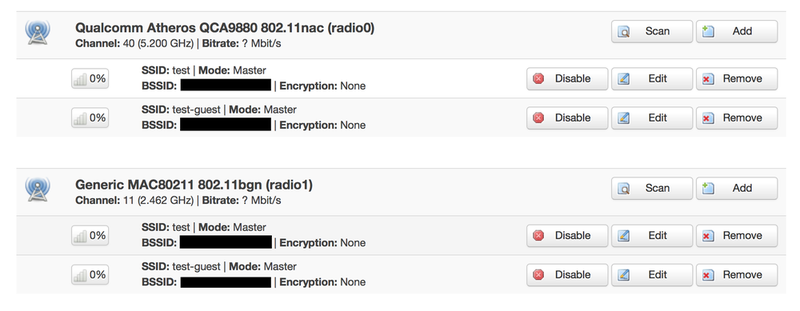
- Open Network → Switch.
- Enable VLAN functionality.
- Enter the VLAN ID configured on OPNsense.
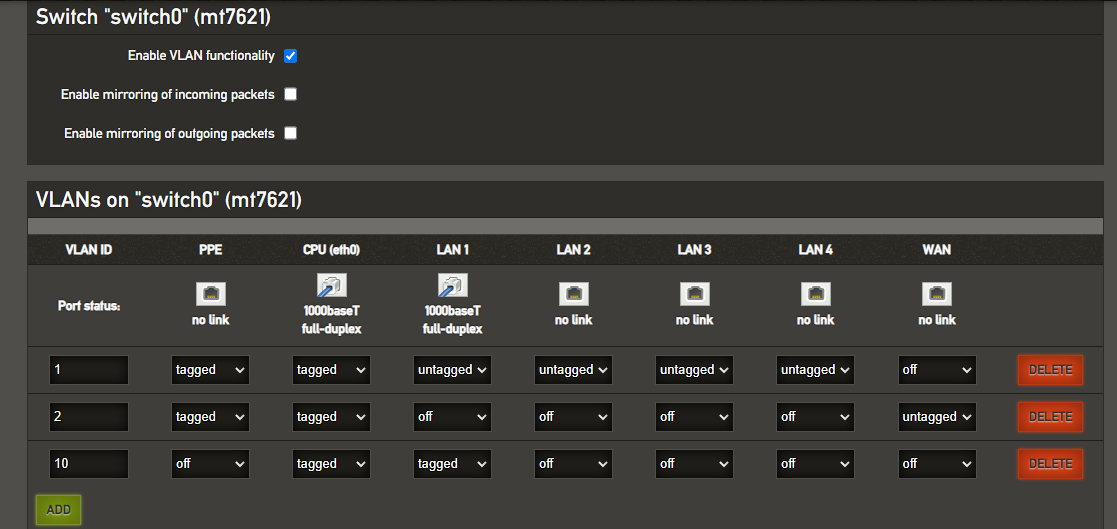
- After saving, open Network → Interfaces.
- Click Add new Interface.
- Enter a name under Name of the new interface.
- Under Cover the following interface, select VLAN Interface: eth0.10.
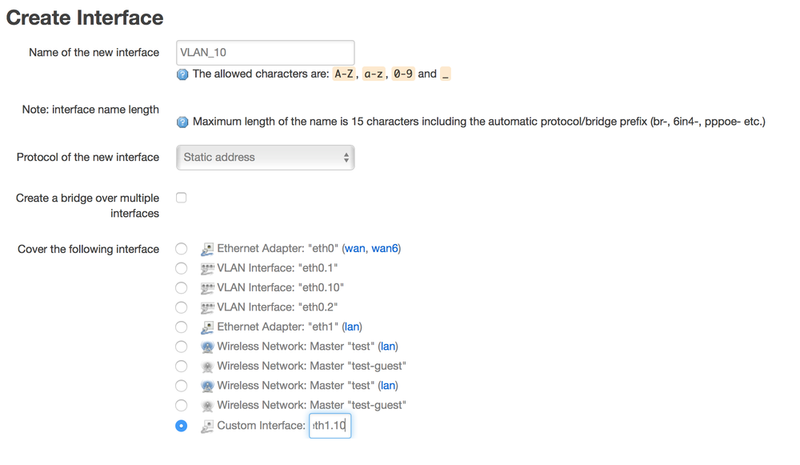
- Click Save.
- In Physical Settings, select VLAN Interface: eth0.10 and the two wireless networks named
test-guest.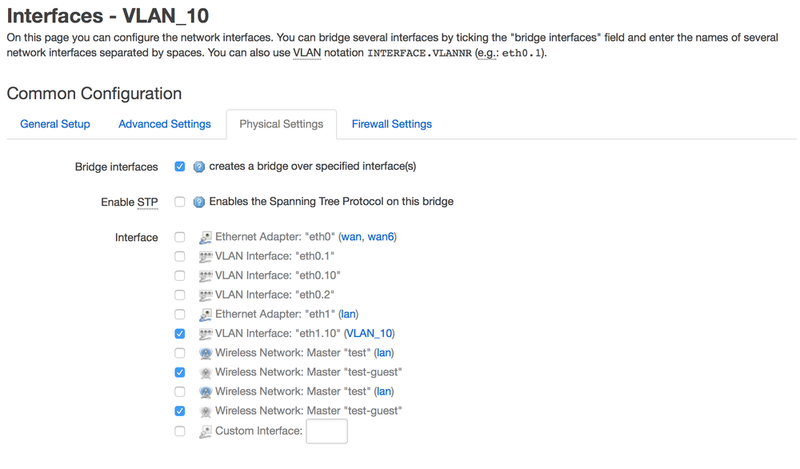
- Click Save and Apply.
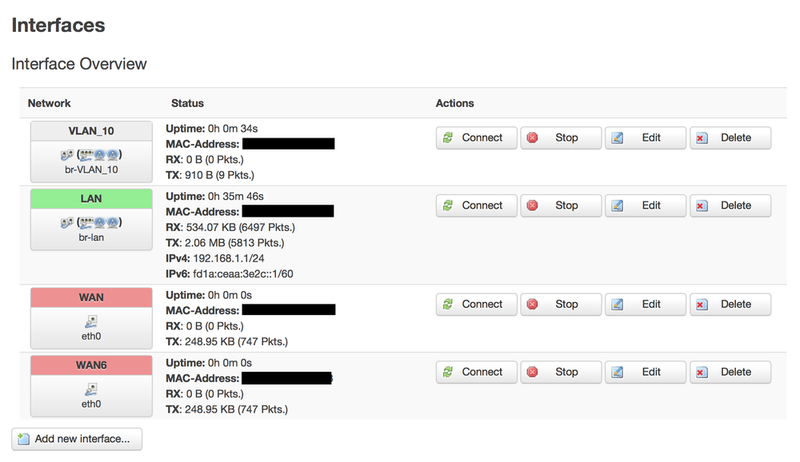
- Test the configuration.
Bonus: use the WAN port
If you need to use the WAN port as well, follow the original port-mapping example from @Dương Chấn Huy:
📂 Screenshot ▼
- 1
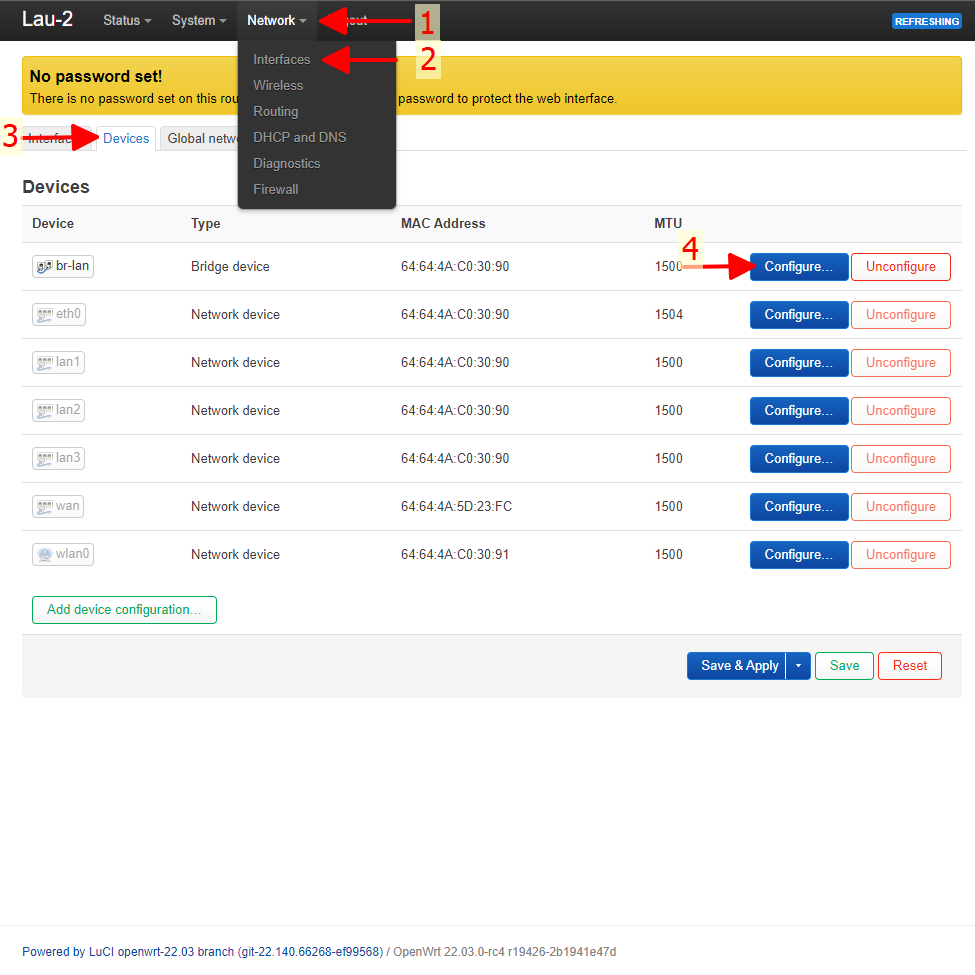
- 2
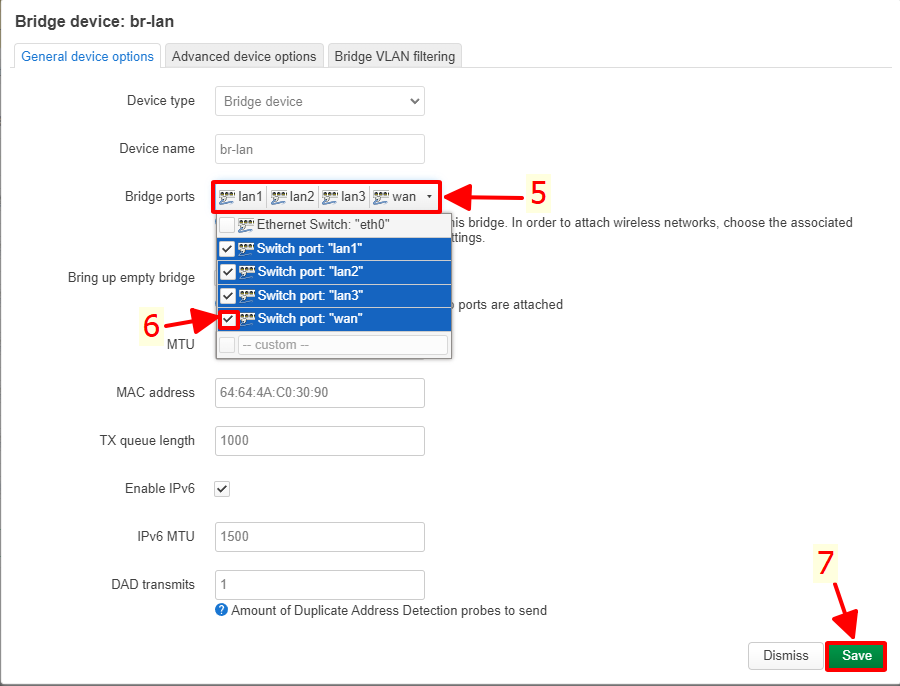
Good luck!
Tags:
#openwrt
Comments & Discussion
Share your thoughts, ask questions and feedback