How to Configure PPPoE with a VLAN ID on OpenWrt

In the previous article, I explained how to configure PPPoE on OpenWrt when the ISP does not use a VLAN, or when the ISP modem can set the VLAN inside its bridge configuration.
This guide configures PPPoE with a VLAN directly on OpenWrt. Some ISP modems do not provide a VLAN field in bridge mode even though the PPPoE connection requires one. In that case, the VLAN must be created on OpenWrt. Your router must support VLANs.
I. Configure the VLAN
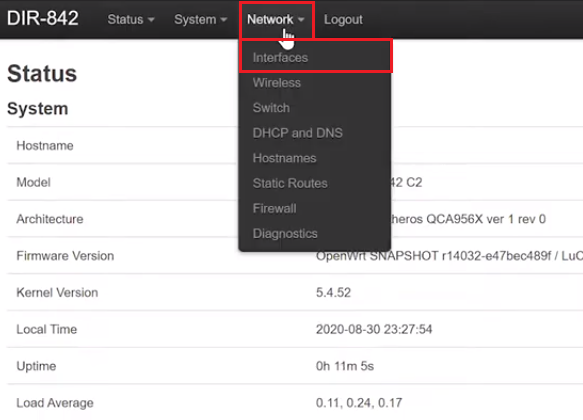
- Log in to the OpenWrt router and open Network > Interfaces.
{{< collapse “Screenshot” >}}
 {{< /collapse >}}
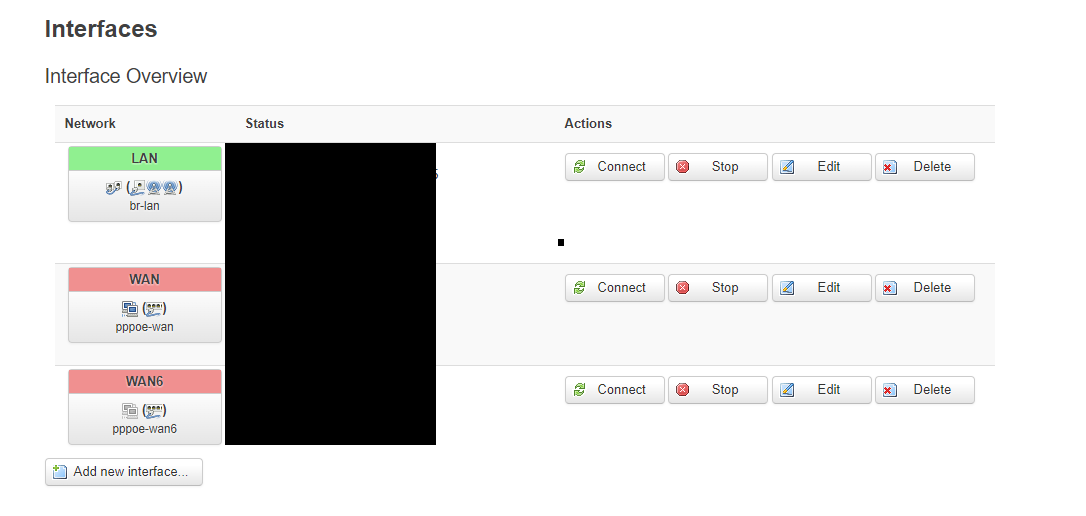
 - OpenWrt normally creates three interfaces: LAN, WAN, and WAN6.
{{< collapse “Screenshot” >}}
 {{< /collapse >}}
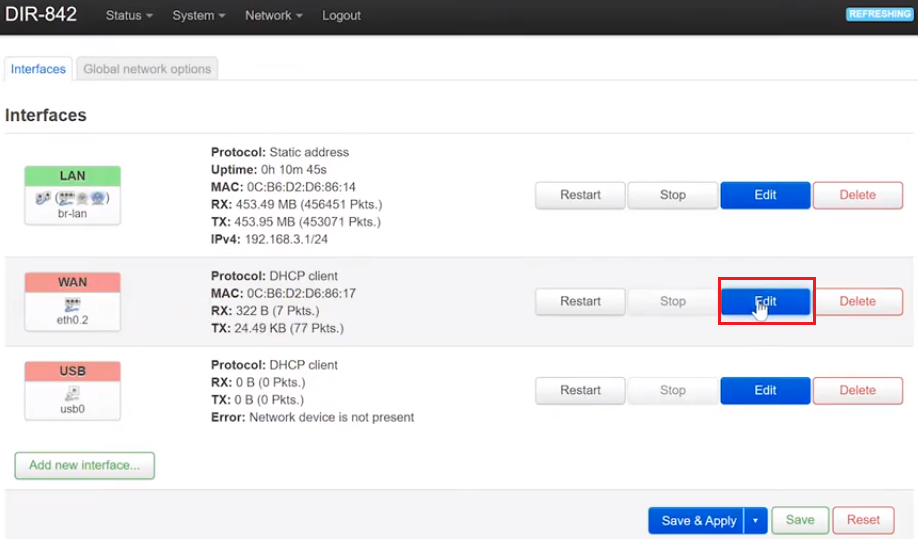
Identify the physical WAN port by clicking Edit on the WAN interface.
{{< collapse “Screenshot” >}}
 {{< /collapse >}}
Open the Physical Settings tab. It shows the eth port used by the interface. In my case, it is eth1.

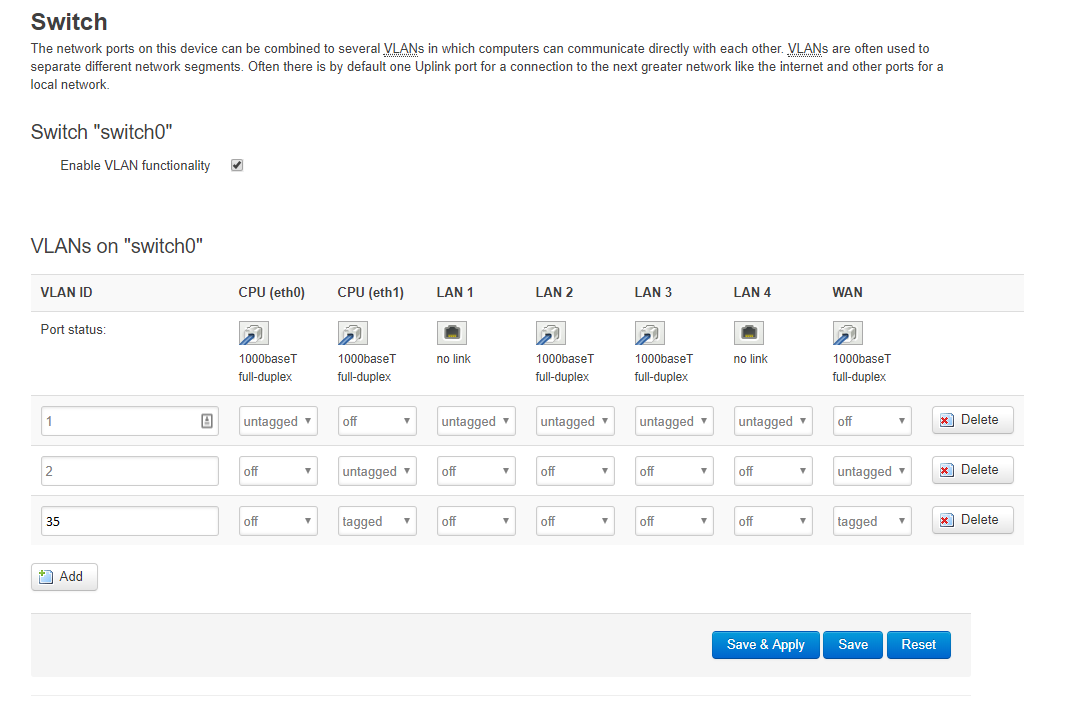
- Go to Network > Switch. Routers with VLAN support normally have this menu. Enable VLAN functionality, click Add, and enter the VLAN ID. In this example, the Viettel VLAN is 35. Set the CPU (eth1) and WAN columns to tagged.
{{< collapse “Screenshot” >}}
 {{< /collapse >}}
 - Click Save & Apply.
II. Configure the WAN interface
-
Return to Network > Interfaces.
-
Click Edit on WAN. {{< collapse “Screenshot” >}}
{{< /collapse >}} -
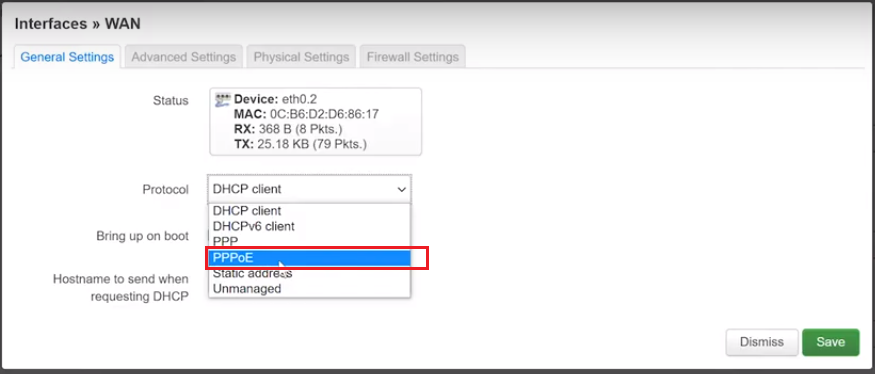
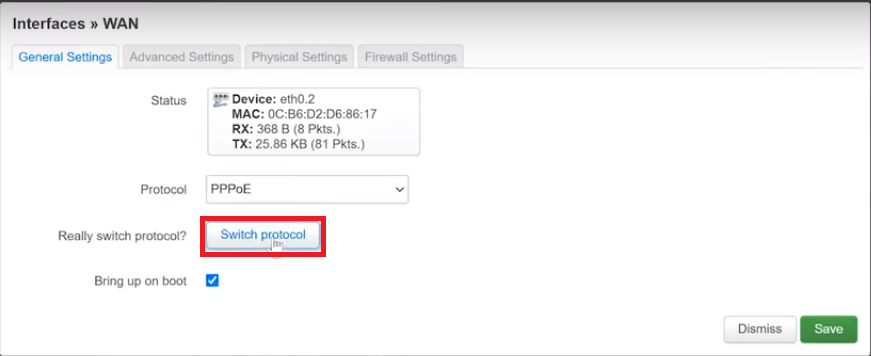
In Protocol, select PPPoE, then click Switch Protocol. {{< collapse “Screenshot” >}}
 {{< /collapse >}}
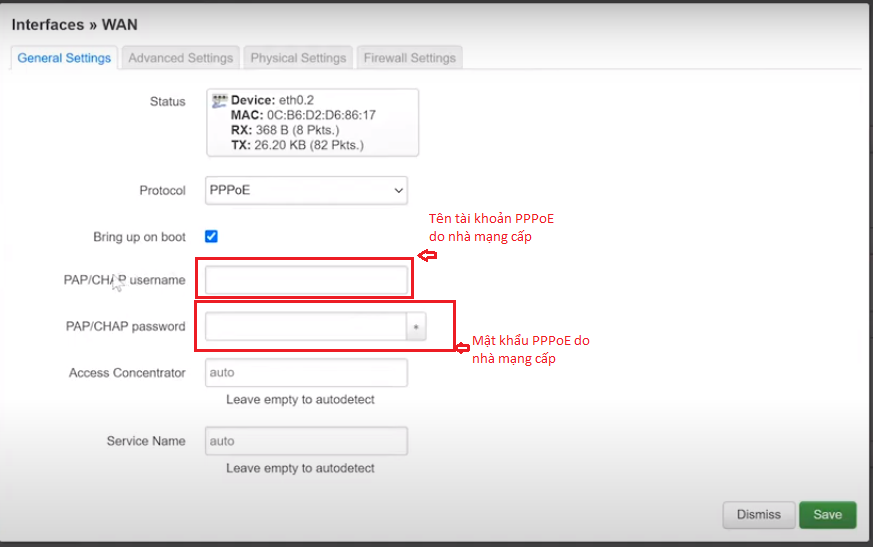
Additional fields will appear:
- Enter the ISP-provided PPPoE account in PAP/CHAP Username.
- Enter the ISP-provided PPPoE password in PAP/CHAP Password.
{{< collapse “Screenshot” >}}
 {{< /collapse >}}
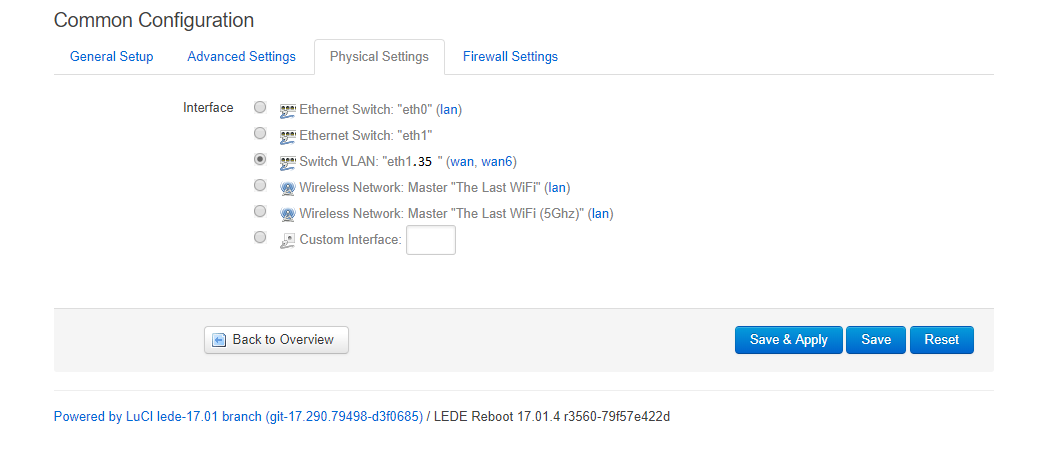
After entering the credentials, open Physical Settings and select the VLAN ID created earlier.
{{< collapse “Screenshot” >}}
 {{< /collapse >}}
- Click Save & Apply.
- If the configuration is correct, WAN will display an IPv4 address and, if available, an IPv6 address.
{{< collapse “Screenshot” >}}
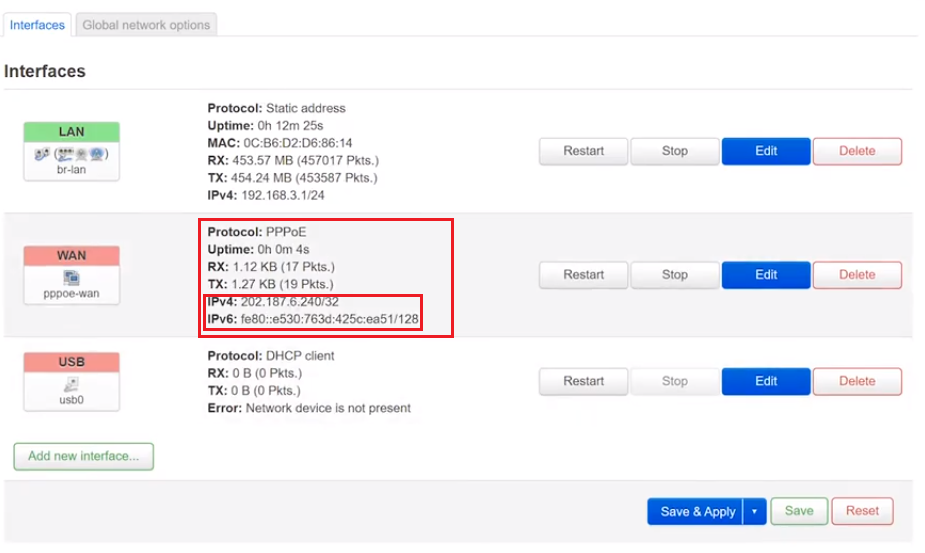 {{< /collapse >}}
If the interface does not update, click Connect and try again.
{{< collapse “Screenshot” >}}
 {{< /collapse >}}
These are the complete steps for configuring PPPoE with a VLAN on OpenWrt. I successfully tested them on a Newifi3 D2 running PandoraBox (based on OpenWrt) with Viettel VLAN 35. If it does not work, check the PPPoE username, password, VLAN ID, bridge settings on the modem, and whether the ISP requires a cloned MAC address.
Good luck!
If you have questions or suggestions, leave a comment. Thank you.
Comments & Discussion
Share your thoughts, ask questions and feedback