TP-LINK 7DR7299 No-Disassembly OpenWrt Flashing Guide & Performance Benchmark

- I. Firmware Prerequisites
- II. Step-by-Step No-Disassembly Flashing
- Step 1: Flash the Intermediate Debug Firmware
- Step 2: Flash the ImmortalWrt Image
- Step 3: Access the OpenWrt / ImmortalWrt Interface
- III. Benchmarking & System Customization
- 1. CPU Benchmark via CoreMark
- 2. Installing Argon Theme & iStore App Center
- 3. Flash Storage Utilization
- 4. Full Cone NAT (NAT1) Verification
- IV. Critical Limitations & Trade-Offs
- 1. Missing kmod-tun Kernel Module (No Tailscale / ZeroTier)
- 2. 5GHz Wi-Fi Output Reduced by ~40% vs. Stock
- V. Final Verdict & Recommendation
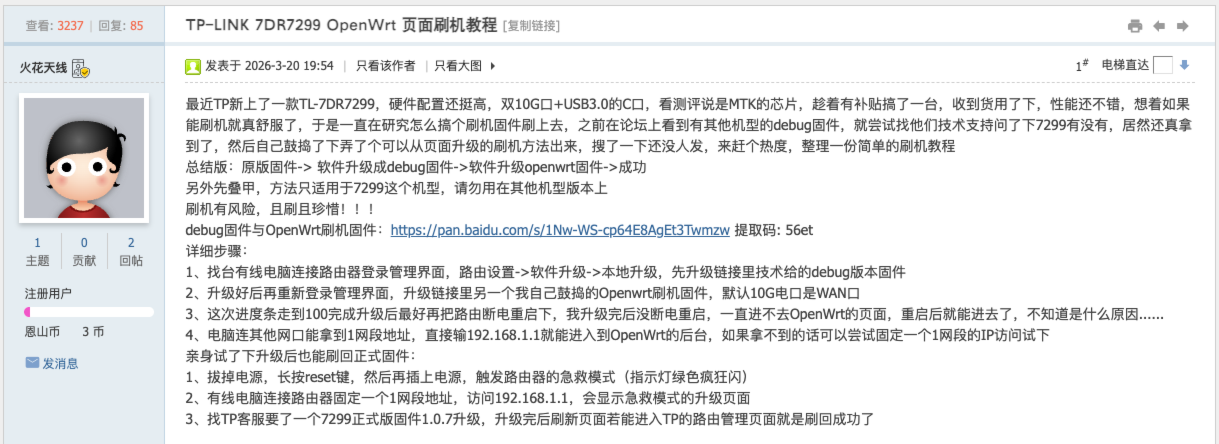
The TP-LINK TL-7DR7299 Wi-Fi 7 router is powered by the MediaTek MT7988AV (Filogic 880) quad-core Cortex-A73 SoC @ 1.8GHz, complemented by 1GB of RAM and a potent dual 10G + quad 2.5G port array. Recently, a breakthrough flashing method has emerged that allows deploying OpenWrt / ImmortalWrt on this device without physical disassembly or UART soldering.
Here is a hands-on walkthrough of the web-based flashing procedure, CoreMark CPU benchmark results, Argon theme and iStore deployment, as well as an honest look at existing software limitations.
The initial flashing workflow and firmware builds were contributed by community developer 火花天线 on the Enshan (Right) networking forum. Special thanks to the author for enabling custom firmware on this hardware.
The installation pipeline is straightforward and accomplished entirely within the router’s standard Web management interface:
Stock Firmware ➔ Web Upgrade to Debug Transition FW ➔ Web Upgrade to ImmortalWrt FW ➔ Success!
I. Firmware Prerequisites
Before proceeding, download the two required firmware files:
- Intermediate Debug Transition Firmware (
debug transition firmware). - ImmortalWrt operating system build for the TP-LINK 7DR7299 (MT7988A platform).
Backup mirror repository (Quark Netdisk):
- Download Link: 7DR7299 Firmware Package on Quark Pan
- Extraction Code:
rFB9 - Backup Link MediaFire
II. Step-by-Step No-Disassembly Flashing
Step 1: Flash the Intermediate Debug Firmware
Log into the TP-LINK router web interface (default gateway is 192.168.1.1 or domain tplogin.cn).
Navigate to: Router Settings (路由设置) ➔ Software Upgrade (软件升级) ➔ Local Upgrade (本地升级):
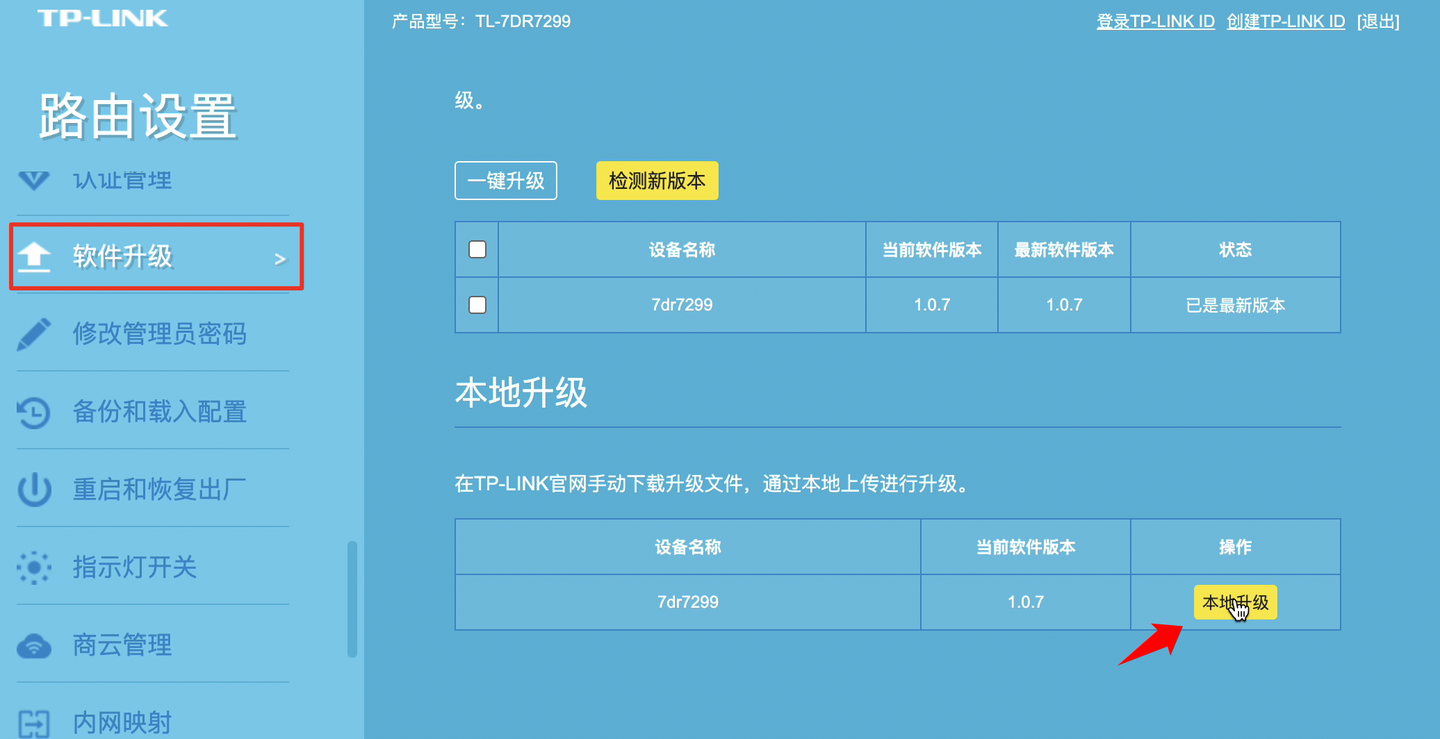
Click the file selector and choose the downloaded debug transition firmware file:
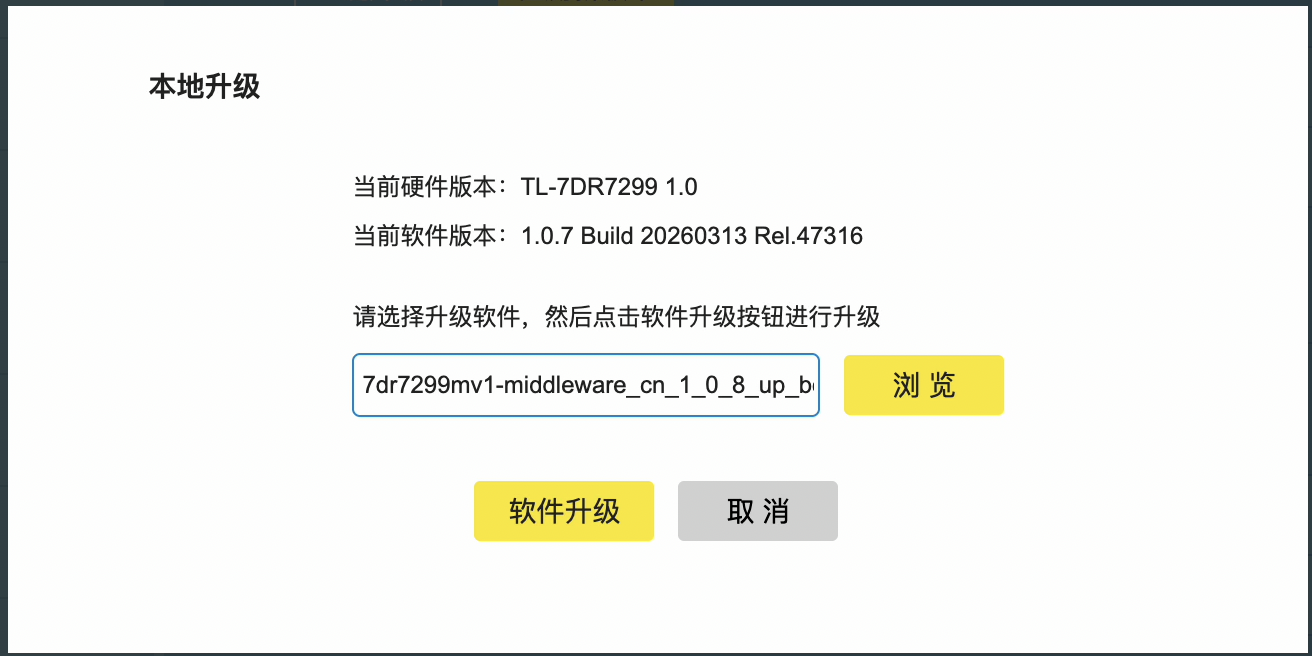
Once the file uploads, click Upgrade Software (软件升级). Ensure the power cable remains undisturbed while the progress bar advances to 100%:

Step 2: Flash the ImmortalWrt Image
Following the debug flash, the router will reboot automatically. Reconnect to your original Wi-Fi network (the previous SSID and administrator password remain preserved at this stage).
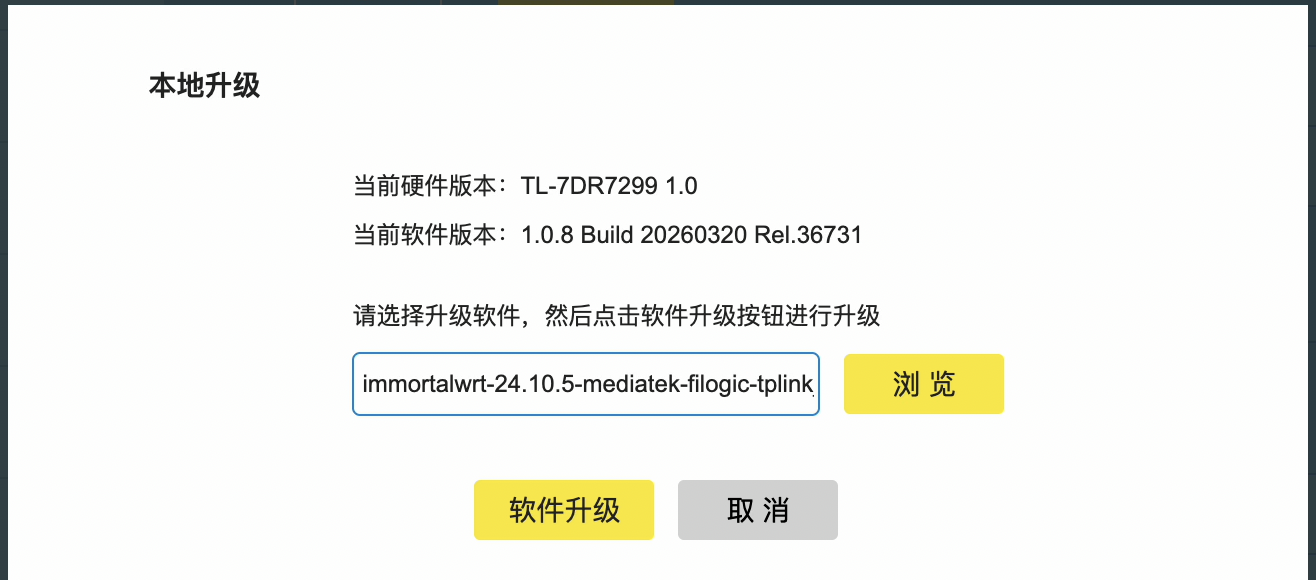
Return to the Web management dashboard and re-open the Software Upgrade tab. You will observe that the firmware version is now reported as debug build 1.0.8:
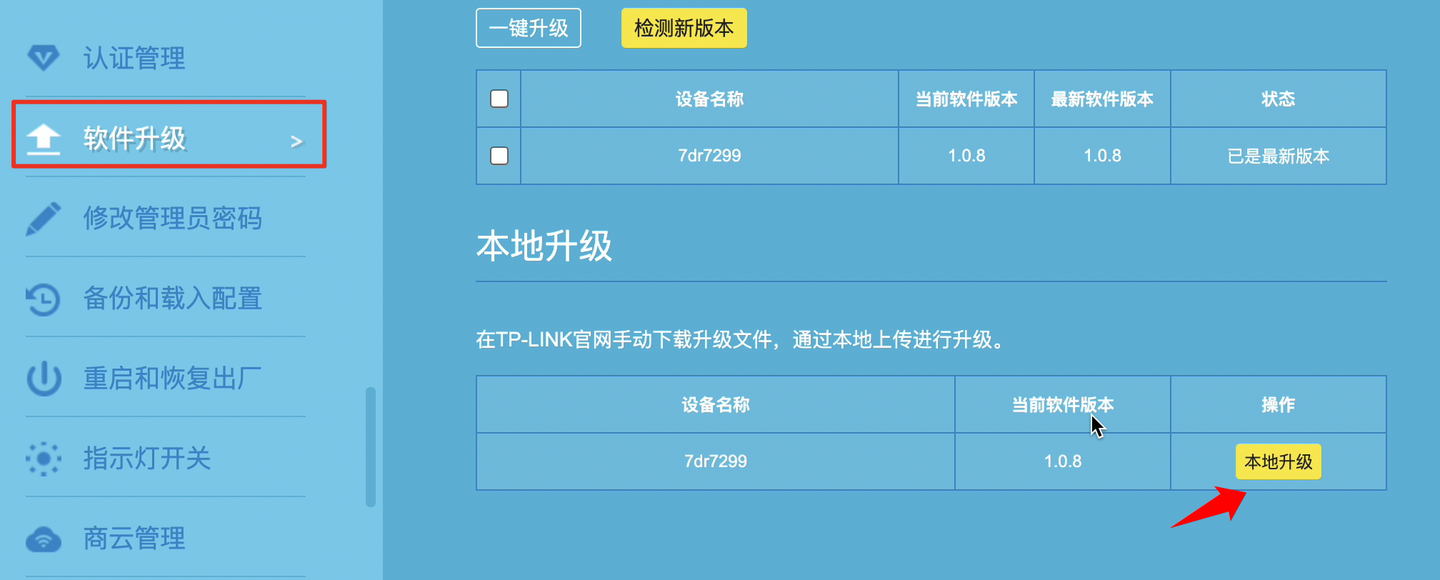
Click Browse again, select the ImmortalWrt firmware file, and click Upgrade. Wait patiently for the progress indicator to complete 100%:
Step 3: Access the OpenWrt / ImmortalWrt Interface
The router will restart into the new Linux operating system. Allow 2 to 3 minutes for network services and radio daemons to initialize.
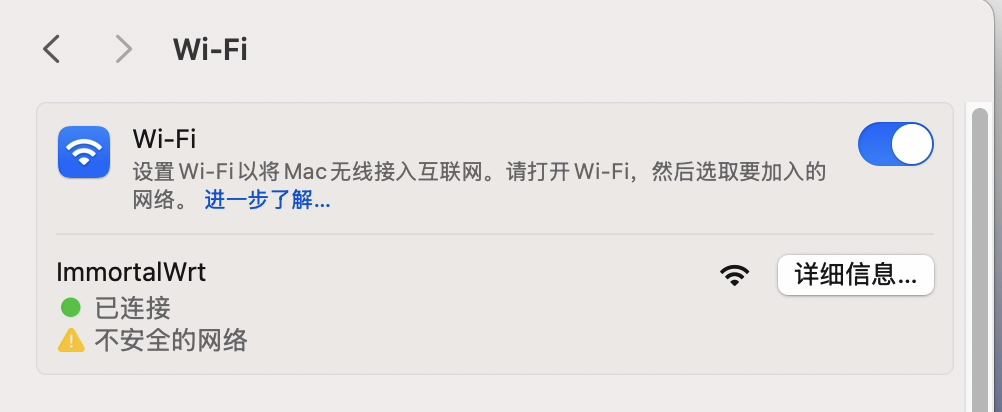
If you do not see the new Wi-Fi beacon after several minutes, power cycle the DC adapter. Connect to the open unencrypted wireless network named ImmortalWrt:
Open a web browser and navigate to the LuCI management gateway:
- IP Address:
192.168.1.1 - Username:
root - Password: (leave blank)

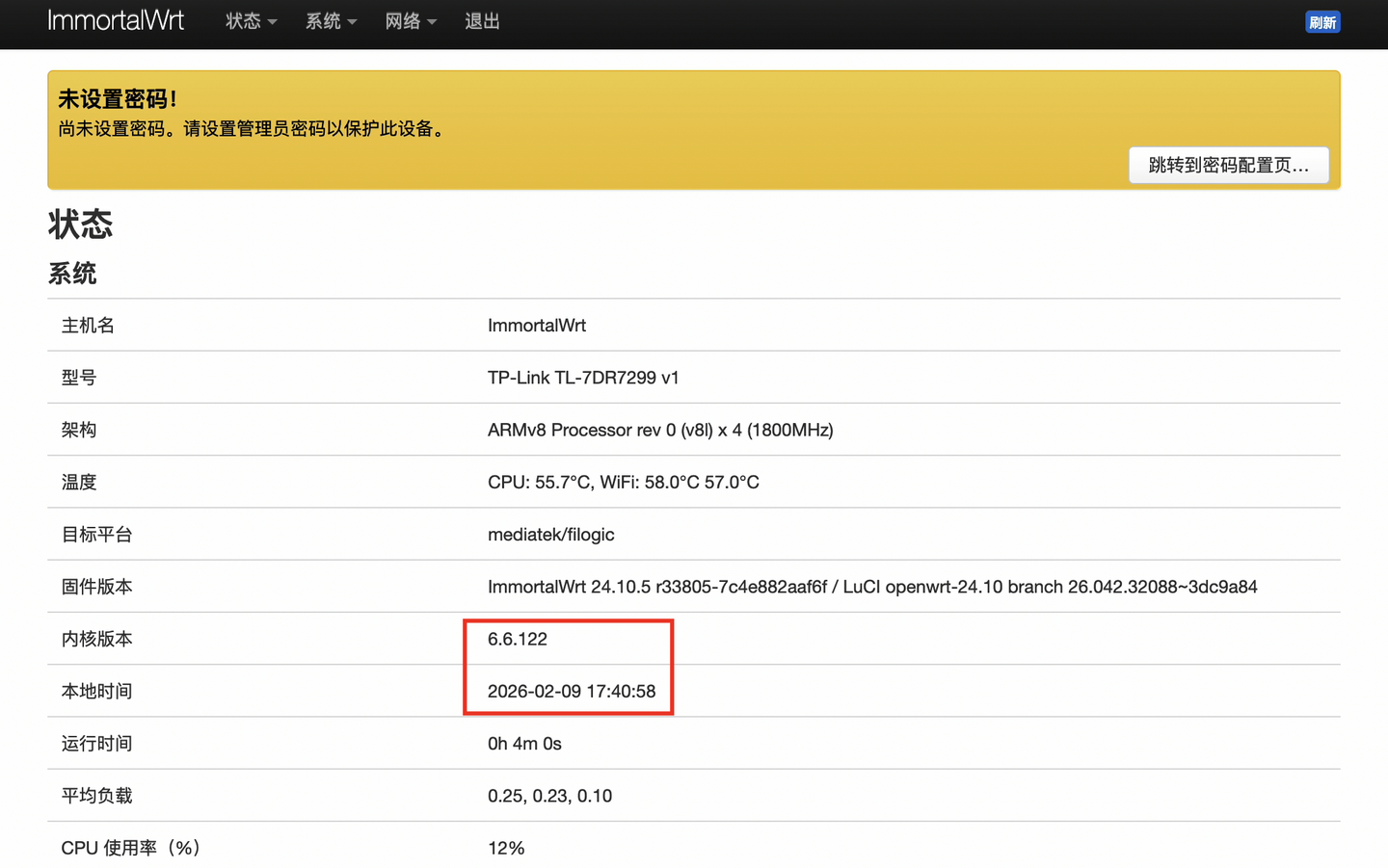
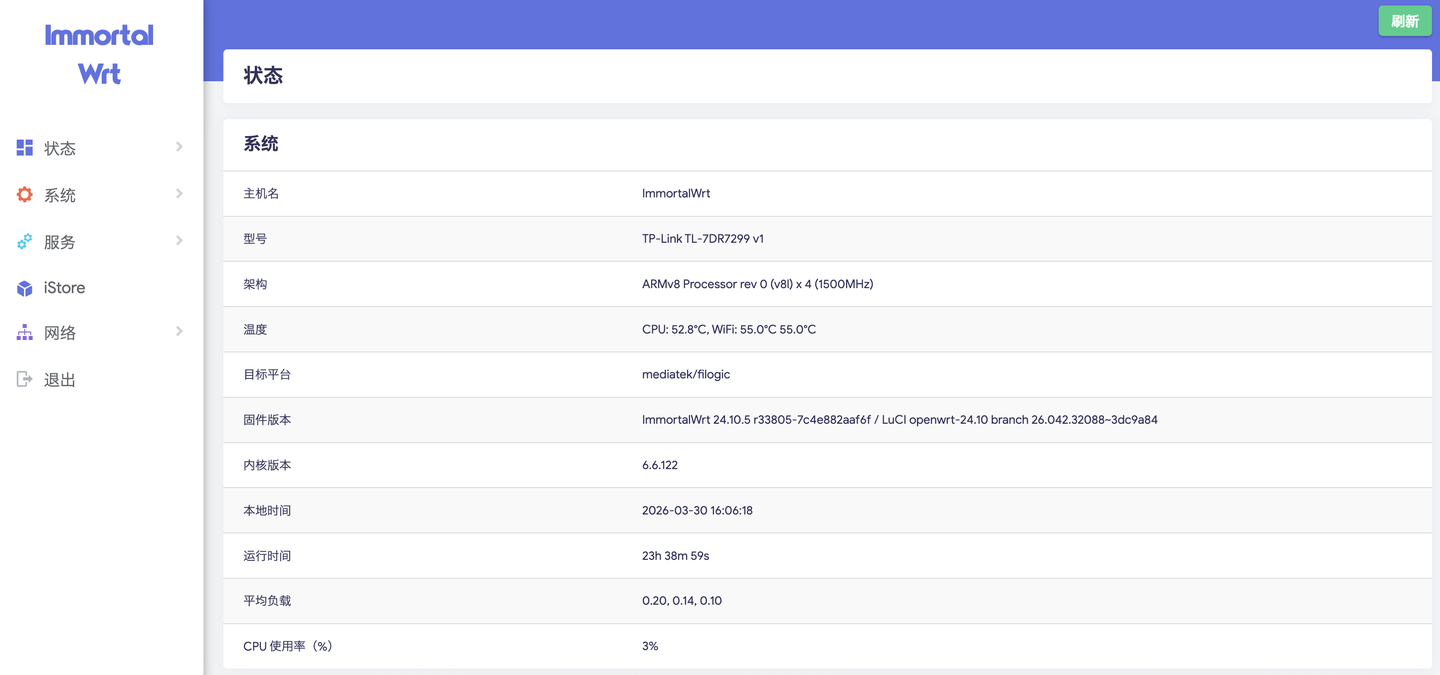
Logging in brings you to the OpenWrt status overview. The device runs a modern Linux Kernel 6.6.122, correctly recognizing the MediaTek MT7988A quad-core processor and 1GB RAM:
III. Benchmarking & System Customization
1. CPU Benchmark via CoreMark
The MediaTek MT7988AV features four Cortex-A73 execution cores at 1.8GHz. To verify raw throughput, establish an SSH session to 192.168.1.1 as user root and execute the automated CoreMark testing script:
# Execute single-line CoreMark benchmarkwget -qO- https://gou.fan/coremark/run-mirror.sh | shThe benchmark yields the following score on the TL-7DR7299:
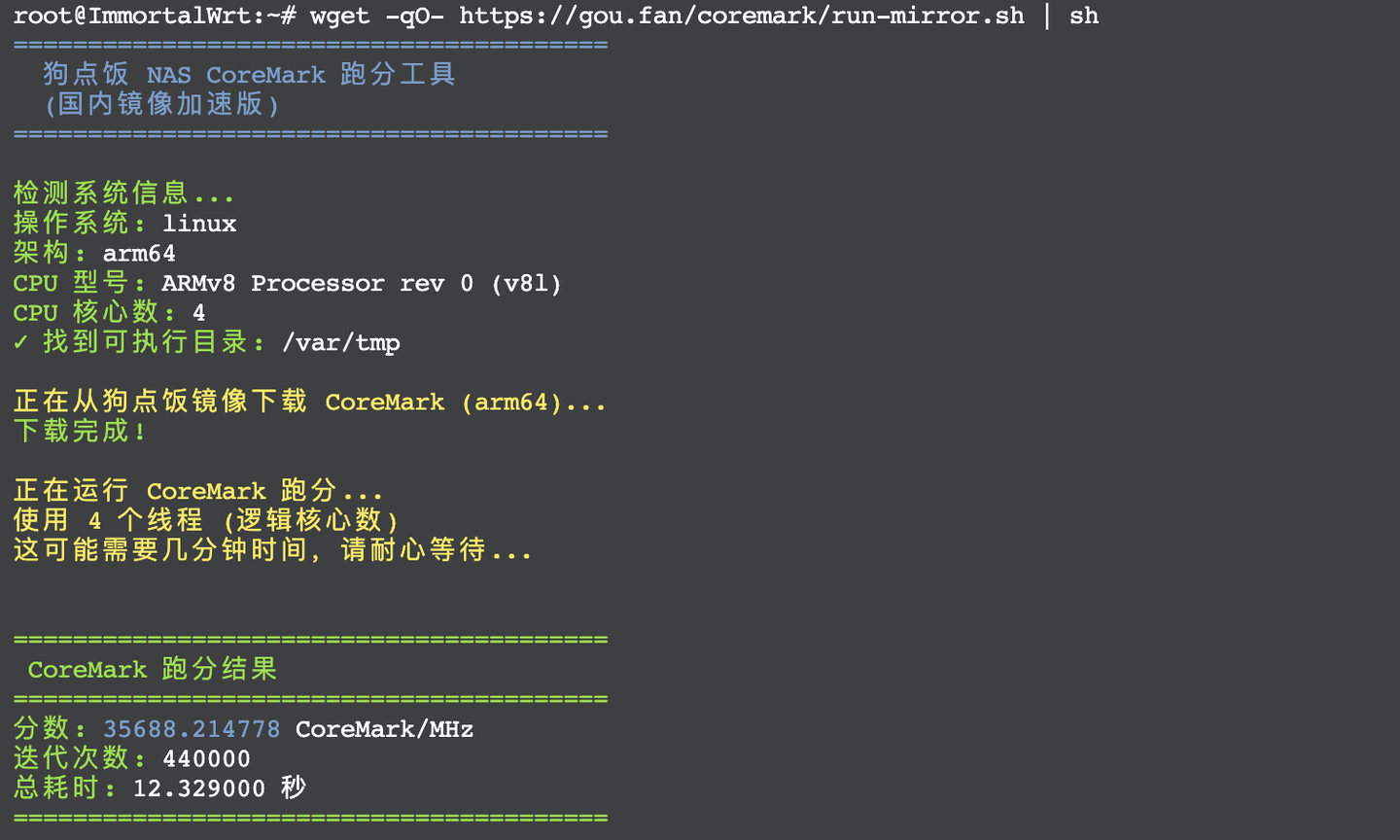
- Measured CoreMark Result: 35,688 points.
- Reference Comparison: The Xiaomi 10G Router (Qualcomm IPQ9570, 4x A73 @ 2.2GHz) scores 44,385 points.
- Performance Scaling Ratio:
35688 ÷ 44385 ≈ 80.4%. Because both processors share identical Cortex-A73 microarchitecture, this precisely reflects their clock frequency difference (1.8GHz ÷ 2.2GHz ≈ 81.8%). The MT7988A delivers formidable CPU compute headroom for its price category.
2. Installing Argon Theme & iStore App Center
The stock LuCI appearance is fairly utilitarian. To install the modern Argon Theme:
# Update package lists and install Argon themeopkg updateopkg install luci-theme-argon luci-app-argon-configNext, install the iStore package repository frontend for visual one-click plugin management:
# Download and trigger the iStore setup scriptopkg update || exit 1cd /tmpwget https://github.com/linkease/openwrt-app-actions/raw/main/applications/luci-app-systools/root/usr/share/systools/istore-reinstall.runchmod 755 istore-reinstall.run./istore-reinstall.runRefresh the browser window. The LuCI interface will adopt the polished Argon design language with an integrated iStore tab:
3. Flash Storage Utilization
The router includes a 128MB SPI NAND flash chip. After flashing ImmortalWrt, the system overlay partition reports approximately 75MB of available free space, leaving ample room for core utilities, AdGuard Home, or DNS resolvers:

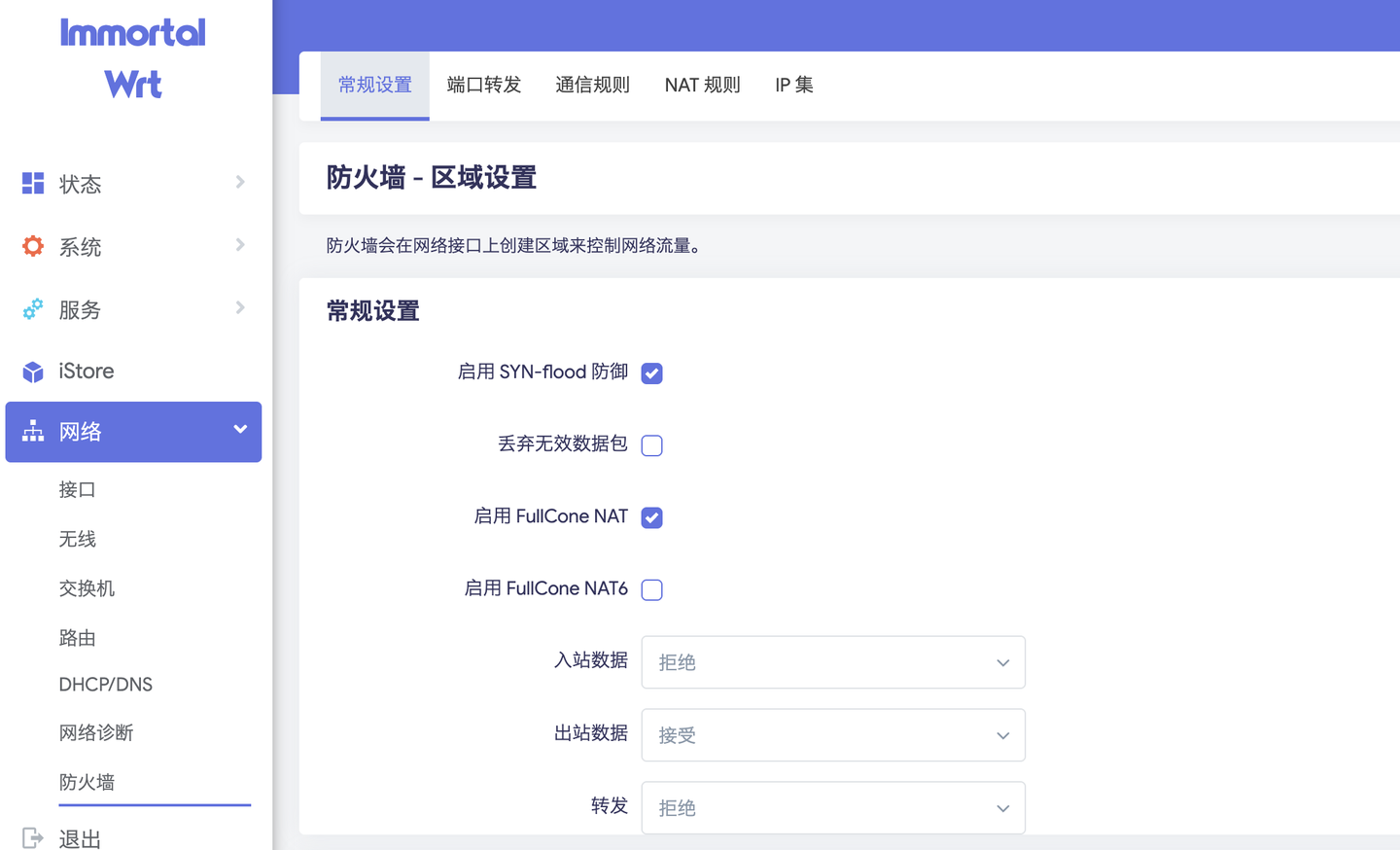
4. Full Cone NAT (NAT1) Verification
Inspecting firewall behavior confirms that the firmware supports Full Cone NAT (NAT1) out of the box, providing optimal conditions for gaming consoles (PlayStation/Xbox), P2P swarms, and VoIP endpoints:
IV. Critical Limitations & Trade-Offs
While flashing is accessible and CPU performance is strong, this initial release presents two significant limitations that users must weigh carefully:
1. Missing kmod-tun Kernel Module (No Tailscale / ZeroTier)
The most glaring functional drawback: This build does not include the kmod-tun kernel module (the virtual TUN/TAP network driver in Linux).
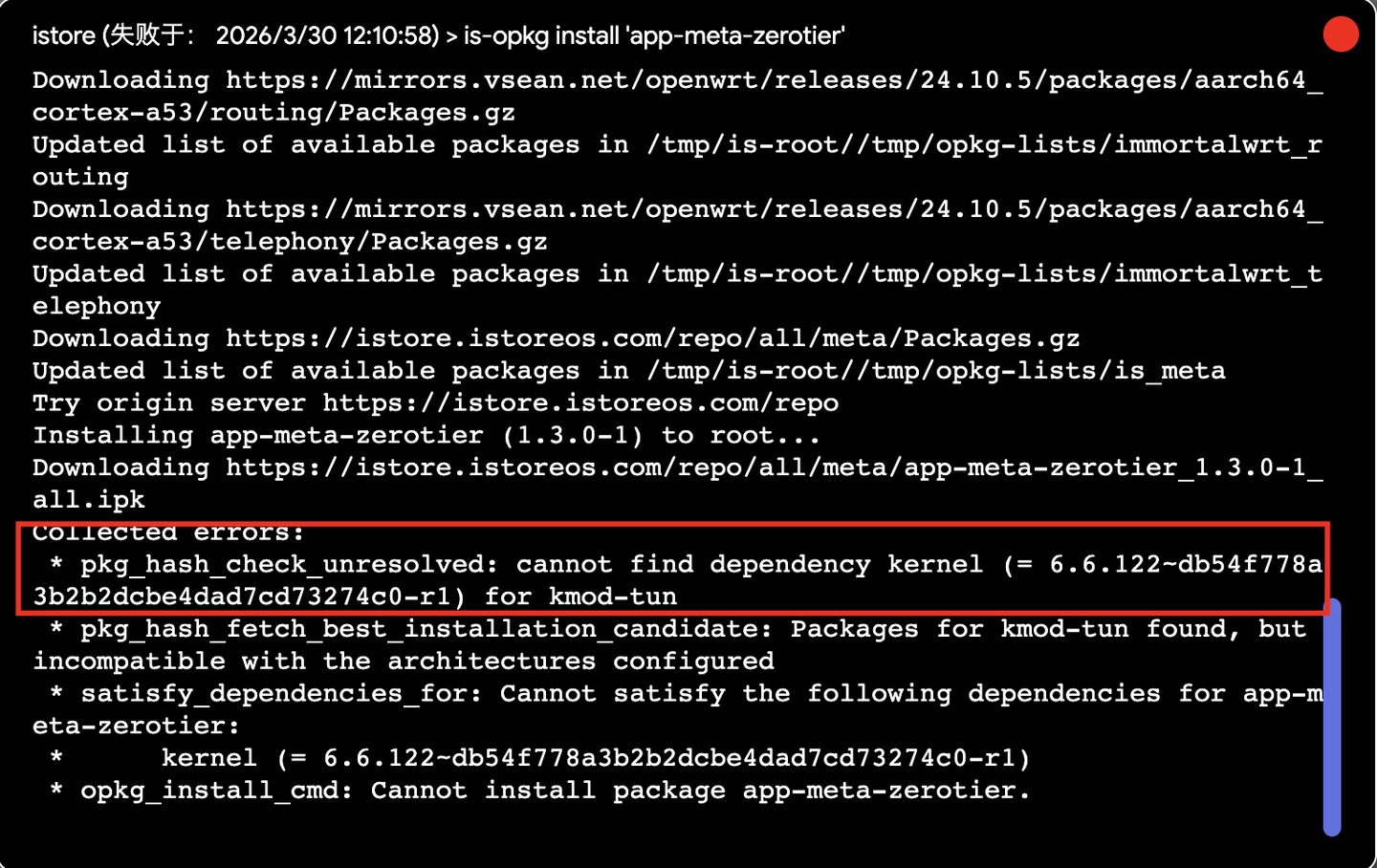
- Attempting to install
kmod-tunvia opkg fails because the build’s remote package feed returns 404 Not Found. - Trying to manually force install packages from adjacent kernel trees triggers kernel vermagic checksum mismatch errors.
- Practical Impact:
- You cannot run virtual networking tools such as Tailscale, ZeroTier, or OpenVPN (TUN mode).
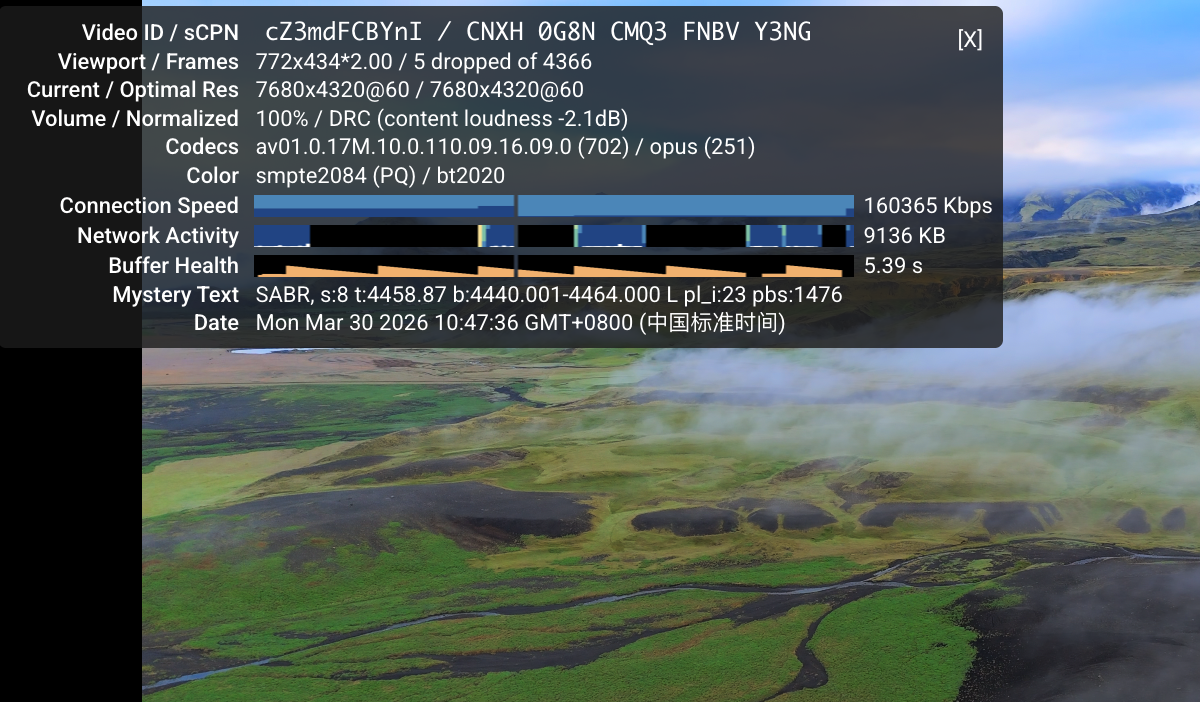
- LuCI-based proxy plugins utilizing TUN routing will fail to start. If proxy routing is required, you must run it manually in userland via SSH terminal:
2. 5GHz Wi-Fi Output Reduced by ~40% vs. Stock
As commonly seen with newly ported open-source firmware on Wi-Fi 7 hardware, open-source wireless drivers lack the proprietary calibration curves and power scaling tables optimized for the high-power Kangxi KCT8548HE-1 FEM array.
Field benchmarks performed with a Xiaomi 13 smartphone demonstrate this gap:
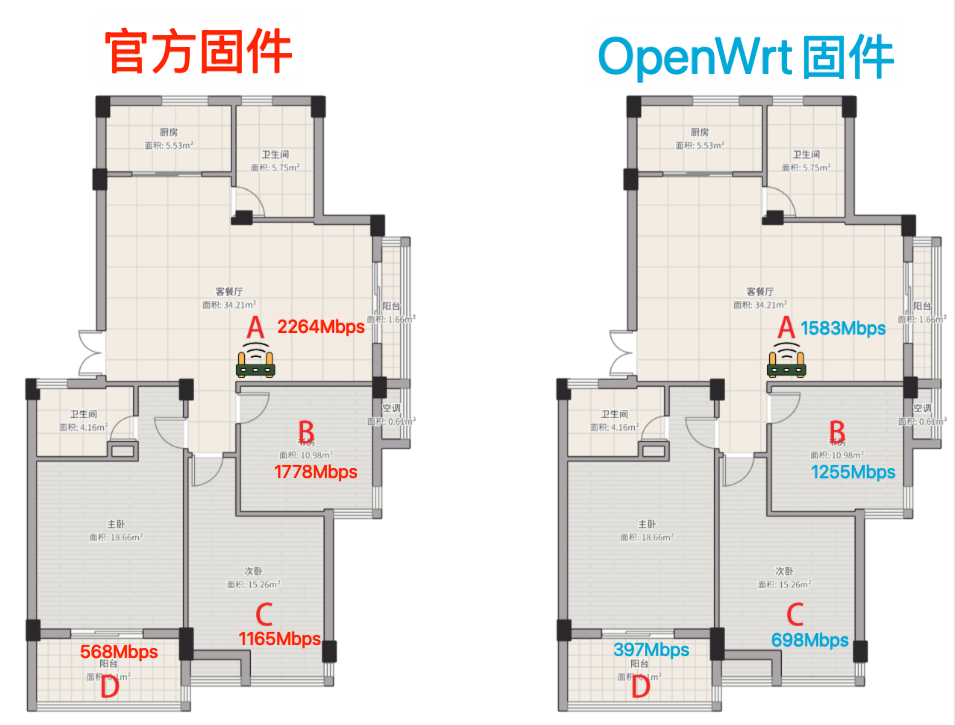
- Line-of-sight close range: Peak throughput tops out around 1500 Mbps (falling short of maximum 160MHz theoretical limits).
- Through two reinforced concrete walls: While the stock TP-Link firmware consistently saturates a 1Gbps uplink (~950+ Mbps) at this position, ImmortalWrt drops to approximately 600 Mbps—representing roughly a 40% signal attenuation.
Despite the ~40% reduction, because the 7DR7299 hardware employs a 4T5R radio chain and high-gain antennas, overall coverage remains adequate to serve an average apartment layout.
V. Final Verdict & Recommendation
Having web-based, no-disassembly OpenWrt capability on the TP-LINK TL-7DR7299 is an exciting milestone:
| Key Strengths | Current Drawbacks |
|---|---|
| Painless flashing via Web UI; no hardware teardown | Missing kmod-tun module (blocks Tailscale / ZeroTier) |
| Powerful MT7988A quad-core SoC (35,688 CoreMark) | Remote software repository returns 404 |
| 1GB DDR4 RAM with 75MB free flash storage | 5GHz Wi-Fi throughput diminished by ~40% vs. stock |
| Full Cone NAT (NAT1) active by default | Immature driver ecosystem in early builds |
Who should flash?
- If your primary requirement is maximum wireless range, bulletproof residential Wi-Fi, and rock-solid vendor stability: Stay on stock TP-Link firmware for now.
- If you want a cost-effective, high-powered multi-gigabit wired routing platform (disabling radios and using standalone APs) or enjoy testing cutting-edge OpenWrt builds on 10G hardware: This is a rewarding setup to explore.
- Expect further community revisions to resolve feed URLs, supply missing kernel modules, and optimize radio driver parameters over time.
Good luck with your setup!
Comments & Discussion
Share your thoughts, ask questions and feedback