Nghia Phan 28 tháng 8, 2026
Update:
28 tháng 8, 2026
This article adapts the complete VirtualBox workflow for running Debian Sid, useful for testing packages and Linux procedures without touching a physical host. Debian Sid is rolling/unstable, so take a snapshot before major changes.
Source reference:
i12bretro – Debian Sid in VirtualBox
. The original video belongs to
i12bretro on YouTube
.
Create the VM and attach the ISO Download Debian Unstable/Sid, for example the
Debian mini.iso
. Open VirtualBox. Select Machine > New . Finish the initial VM wizard and click Create . In Create Virtual Hard Disk, create a disk sized for the lab and click Create . Select the VM and open Settings > System > Processor . Assign at least 2 processors. Open Display and set Video Memory to 128 MB. Open Network and select Bridged Adapter if the VM must appear as a separate LAN device; use NAT when it only needs Internet access. Open Storage and select the CD-ROM drive. Open the disk menu on the right and choose Choose a virtual optical disc file... . Select the downloaded Debian mini.iso. Click OK . Select the Debian Sid VM and click Start > Normal . Install Debian Sid When the installer appears, press Enter to select Install . Select a language. Select a location. Select a keyboard layout. Enter a hostname. Enter a domain name or leave it empty. Choose a mirror location. Choose a mirror. Enter an HTTP proxy if needed, or leave it empty. Leave the root password empty, press Enter , and press Enter again to confirm. Enter the full name for the new user. Enter the username. Enter and confirm the user's password. Select a timezone. Select Guided - use entire disk . Select VBOX HARDDISK . Select All files in one partition . Select Finish partitioning and write changes to disk . Select Yes to write the changes. Select a country for the apt mirror. Select a mirror. Configure the HTTP proxy if necessary. Choose whether to participate in the package usage survey. Select the optional software to install. Wait while Debian Sid installs its files. Select Yes to install GRUB. Select /dev/sda as the boot loader location. Press Enter after installation to reboot. If VirtualBox boots the installer again, use Devices > Optical Drives to remove the ISO. Log into Debian Sid with the account created during installation. Confirm that the system has loaded.
Install Guest Additions From the VM menu, select Devices > Insert Guest Additions CD image... . Open Files. Select the Guest Additions Disc. Right-click the empty area and choose Open terminal here . Update repositories: Install available updates: Clean the apt cache: Install build tools, DKMS, and the current kernel headers: 1
sudo apt-get install build-essential dkms linux-headers-$( uname -r)
Run the Guest Additions installer: 1
sudo sh ./VBoxLinuxAdditions.run
Reboot the VM: After reboot, test full-screen mode and confirm that the resolution follows the window size. Log back into Debian. Note: Bridged Adapter puts the VM on the physical LAN. Debian Sid is less predictable than stable; NAT and snapshots are safer for initial experiments.
Source and video 

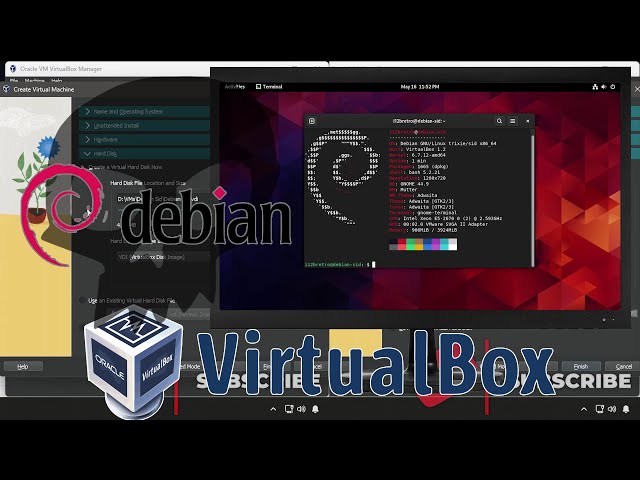
 Step-by-step guide to running Debian Sid rolling …
 Complete steps for installing Java, Maven, and …
 Install Docker and run Home Assistant Container on …
Góp Ý / Bình Luận / Đánh giá